Turn customer orders into Moveka deliveries. A Moveka merchant account gives your shop one place to prepare orders, pay for deliveries and track packages. Your business is the shop or team whose orders you manage.
Have these ready
- Your full personal name, an email inbox you can open and a Kenyan mobile number you can receive messages on. Moveka asks you to verify both contacts.
- Choose a password of at least 12 characters. Use your own login details; you can set the shop name after signing in.
1. Create your Moveka login
- Open https://moveka.africa. Tap the three-line menu at the top right, then Create a merchant account.
- Fill in Full name, Personal email and Mobile number. Enter Password and the same password in Confirm password.
- Read the merchant agreement. If you agree, tick its checkbox, then tap Continue to verification.
- On Verify your contacts, enter the six-digit code from your email under Email verification code and tap Verify email. Enter the code from your text message under Mobile verification code and tap Verify mobile number.
- When both contacts show Verified, tap Create merchant account. On Your merchant account is ready, tap Sign in.
2. Sign in and open your business
- At https://merchants.moveka.africa/login, enter Email and Password, then tap Sign In. Already have a Moveka login? Start here instead of registering again.
- If Moveka shows a merchant agreement before opening your business, read it, accept it if you agree and tap Create merchant account. Use Open merchant workspace if that confirmation appears.
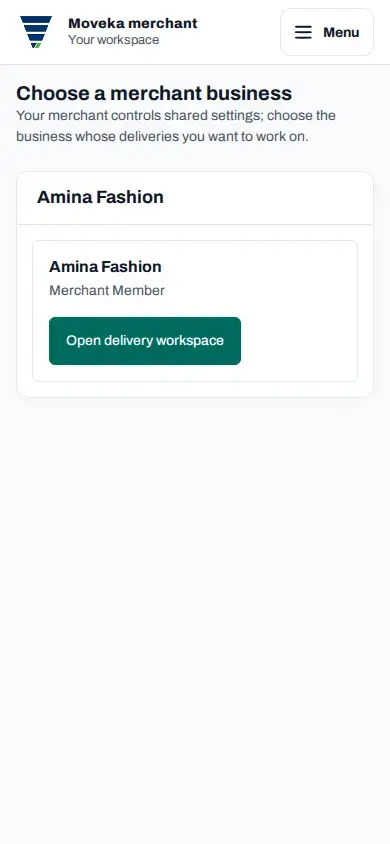
- Your first business is created using your personal name. If asked to choose a business, tap Open delivery workspace beside the one you need. Otherwise Deliveries opens directly.
Create your first merchant account after signing in
3. Put your shop name on the workspace
- On the merchant page, tap Menu at the top right, then Business details under Business administration.
- Enter the Legal or registered name. Use Trading or display name for the shop name you want to see in the workspace.
- Complete the account check shown, such as your current password or verification code. Tap Save business details and check the result on the page.
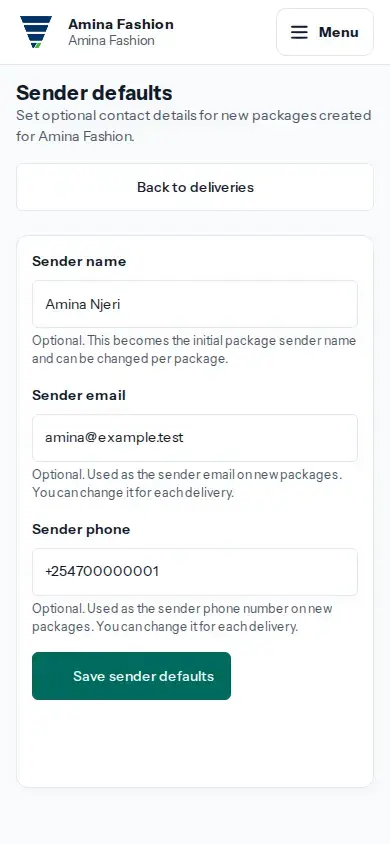
4. Save your usual sender contact
Sender means the person handing the parcel to Moveka. Saving their details helps you start the next order without typing the same contact each time.
- Tap Menu, then Sender defaults under Business administration.
- Enter Sender name, Sender email or Sender phone as useful. These fields are optional.
- Tap Save sender defaults and check the result shown on the page. You can check and change these details for each package.
Save optional sender details for new packages
5. Send your first order
Tap Menu, then Deliveries. Check the business name at the top, then tap Send a package. Start with where the parcel is coming from and where the customer should receive it. The guide Send shop orders with Moveka: Station to Station shows the next steps.
Code missing, sign-in trouble or business not listed?
On contact verification, use Resend email code or Resend mobile code when offered; enter the new code when it arrives. On sign-in, use Forgot password? if needed. If you are joining an existing shop, ask its Merchant Owner or Merchant Admin to add you to that business. They can also check access if Business details or Sender defaults is missing.