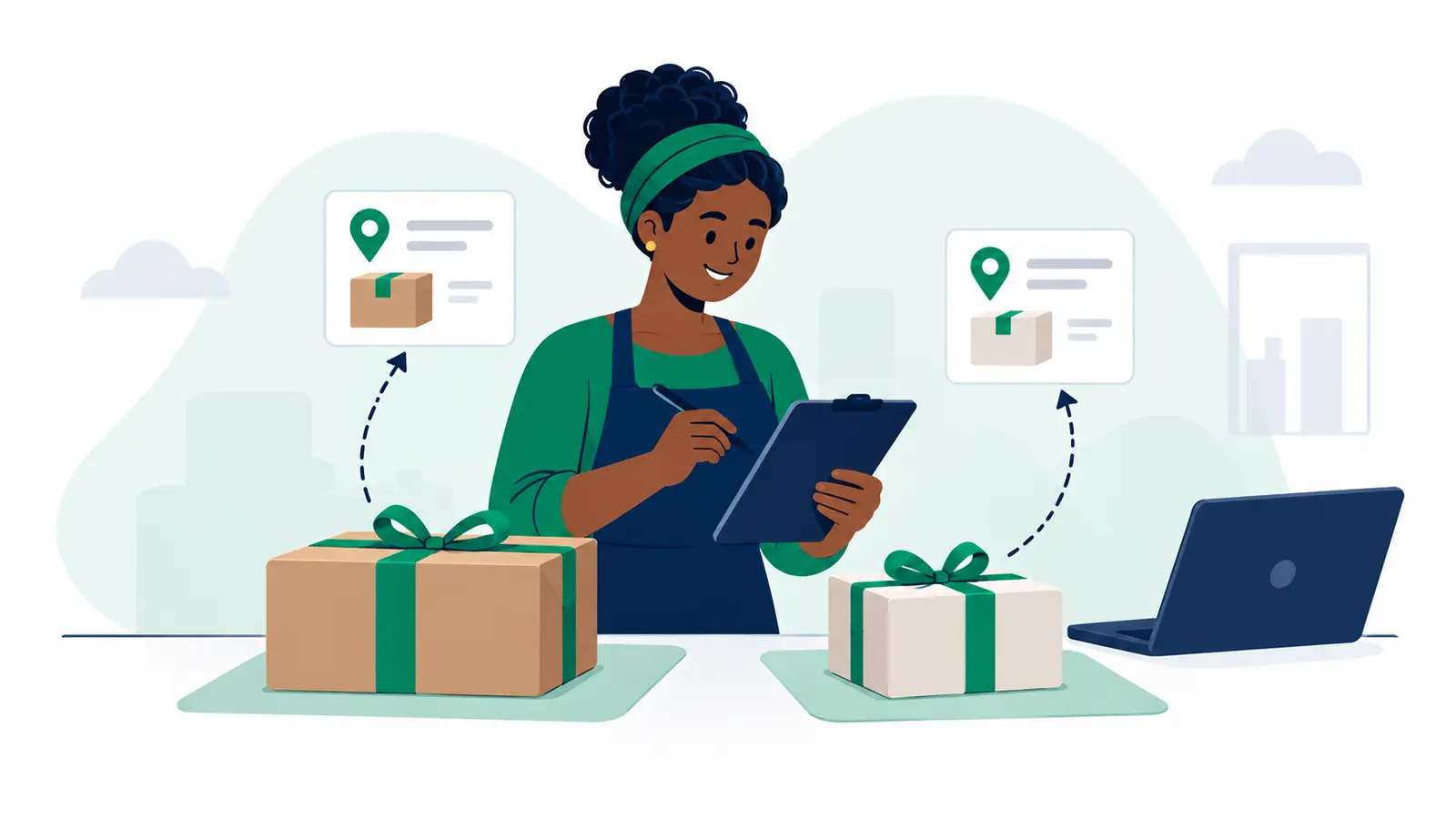
Selling clothes, gifts or other packed items? Moveka lets you arrange the delivery, see the price before paying and follow the package. For Station-to-Station delivery, you drop off at one Moveka Station and your customer collects at another. A Station is an attended place for package handover and collection.
Before you start
New to Moveka? Set up your business account
- Have your Moveka merchant email and password ready. New here? On https://moveka.africa, open the top-right three-line menu and choose Create a merchant account. The guide Start sending for your business with Moveka walks through setup.
- Have the packed item, the customer’s name and phone number, and an idea of where they can collect. You can begin with an area or Station name.
1. Sign in and open your deliveries
- Open https://moveka.africa. Tap the three-line menu at the top right, then Merchant sign in.
- At https://merchants.moveka.africa/login, enter Email and Password, then tap Sign In.
- If asked to choose a business, find your shop or team’s name and tap Open delivery workspace. Your business keeps that shop’s orders together.
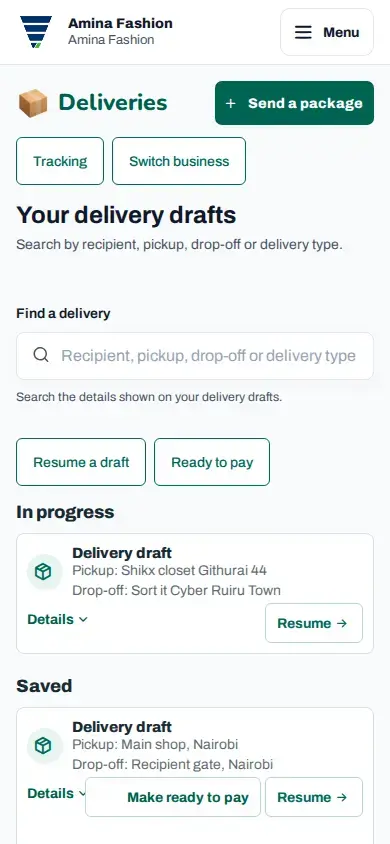
- On Deliveries, check the business name at the top. If it is wrong, tap Switch business, then Open delivery workspace beside the right business. Tap Send a package.
Sign in to your merchant account
2. Choose where to drop off and collect
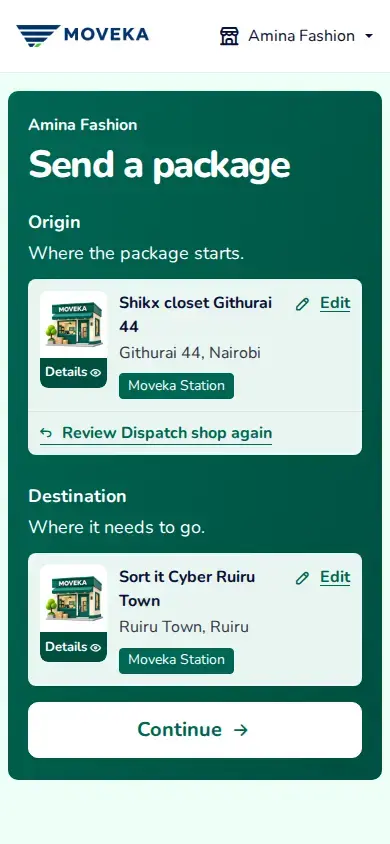
- Under Origin, tap the search box. If a pickup is already shown, tap Edit first. Search by the Station or area name, tap Stations and choose the drop-off Station.
- Under Destination, use the search box to choose the customer’s collection Station. Tap Edit first if a destination is already shown. Check both names, then tap Continue.
- Under Delivery service, compare the available SameDay and Express offers. Read the timing and starting price, choose an offer, then Continue.
Compare SameDay timing and pickup options
Video steps
Open Deliveries for your business and tap Send a package. Under Origin, select the Station where you will drop off. Under Destination, select the Station where the recipient will collect. Check both names, tap Continue and compare the delivery service offers. The contacts, prices and availability shown are examples. No payment is made in this video.
3. Tell Moveka what is inside
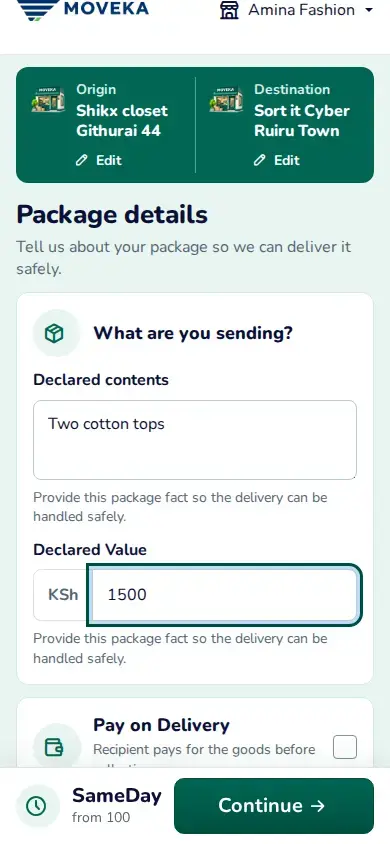
- On Package details, describe the contents. Enter what the contents are worth where asked, and answer the size, weight and handling questions shown for that service. Use the item as packed, including its wrapping.
- Tap Continue to enter Sender and Recipient details. Sender is the person handing over the package; Recipient is the customer collecting it. Check both names and phone numbers, then Continue.
What to enter in Package details
4. Review the order and get ready to pay
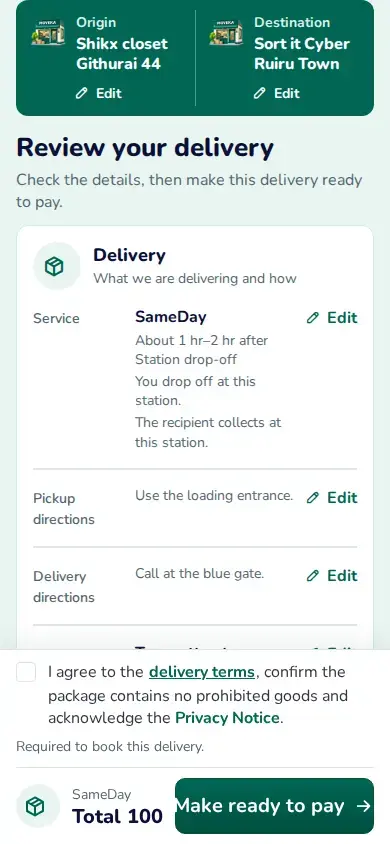
- On Review your delivery, scroll through the route, service, package, people and final charge. Tap Edit beside anything you need to correct.
- Open the delivery terms and read the prohibited-goods information. If you agree, tick the agreement and tap Make ready to pay.
- On Delivery added, tap Go to Ready to pay. This is the list of deliveries waiting for their payment step. Choose this order, review its charge and continue to payment.
Check your delivery before continuing
After Moveka confirms payment and shows the package details, take the parcel to the booked origin Station. Keep your package reference—the reference that identifies this parcel—and wait for the attendant to confirm they have accepted it. Your customer can use that reference to track the delivery.
Need to correct something?
Use Edit Origin or Edit Destination if the route has no available service. Correct any highlighted package or contact answer. If you stop partway, return to Deliveries and tap Resume beside the same order; this unfinished delivery is called a draft. Ready to pay is not payment confirmation.