Switch into the business you want to change, then open Menu and tap Business details. Only the Merchant Owner can edit these details.
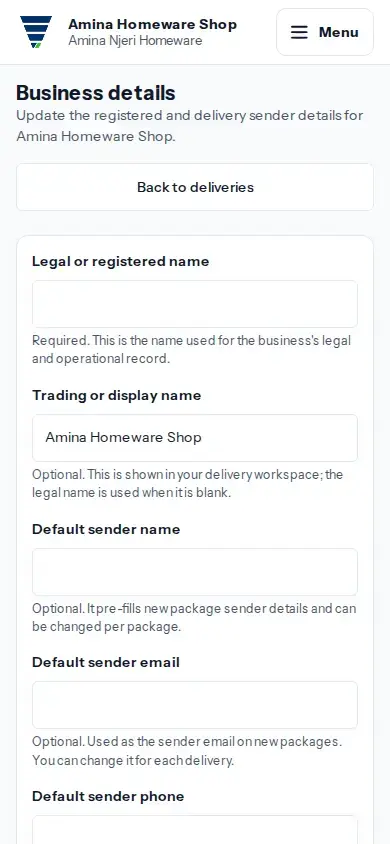
- Update Legal or registered name. This is required for the business record.
- Trading or display name is optional. It appears in the workspace; when blank, Moveka shows the legal name.
- The optional Default sender name, Default sender email and Default sender phone prefill new package sender details. You can still edit sender information for each package.
- Complete the requested security check, then tap Save business details. Depending on your account, the check may ask for your current password, an authenticator code, or an email code. For an email code, tap Send verification code and enter the code you receive.
If a field is rejected, correct the details shown on the page. If the save is uncertain, choose Review business details and check the current values before submitting again.