“Iko wapi?” When a customer asks, open their Moveka delivery and check the latest update. You can send them the package reference too, so they can follow the parcel too.
1. Open your business’s tracking
- Go to https://moveka.africa. Tap the top-right three-line menu, then Merchant sign in. Or open https://merchants.moveka.africa/login directly.
- Enter Email and Password, then Sign In. If asked, choose the business whose order you need and tap Open delivery workspace.
- On Deliveries, tap Tracking. From another merchant page, tap Menu, then Tracking. Check the business name at the top.
2. Find the customer’s order
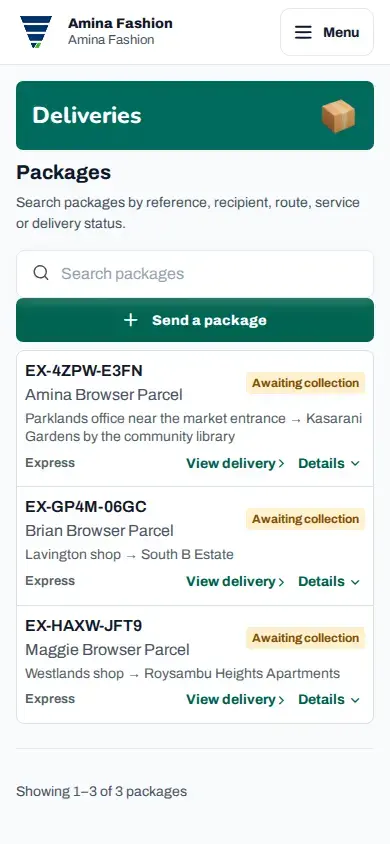
- Tap Search packages. Enter the customer’s name, package reference, route, service or delivery status. A package reference is the code identifying that parcel.
- Match the recipient and route, then tap View delivery.
3. Check what has actually happened
- Read the status, route and next handoff shown. Open Delivery progress to see the recorded steps.
- Open Package details to find Package reference. Keep that reference when discussing the delivery.
- Tell the customer the latest recorded update. Payment, pickup and final delivery are separate steps; use the current status to explain where their order has reached.
Attach or replace a paper label from tracking
If the customer no longer wants the delivery, use the matching cancellation guide only while that delivery’s before-pickup (Express) or before-handover (SameDay) action is still available.
4. Help your customer track it
Copy the Package reference into your message. Ask the customer to open https://moveka.africa, tap the top-right three-line menu and choose Track a package. They enter the reference and tap Track. On the full Track your package page, the button is called Track package.
Share the public tracking link or package reference
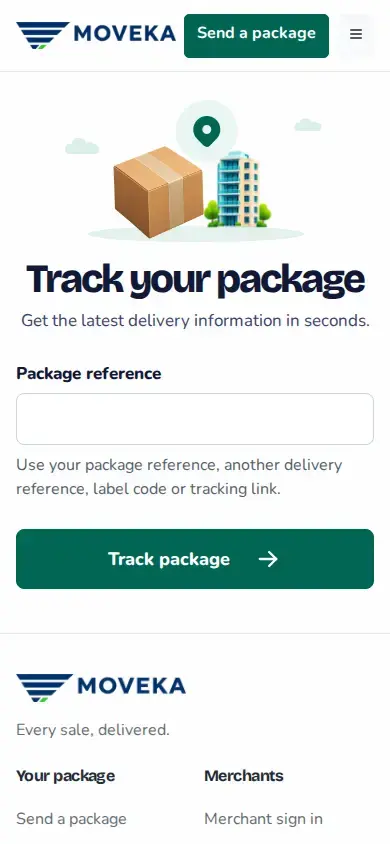
Tracking steps you can share with your customer
If you were given a public tracking link, you can send that instead. Keep your merchant workspace link private; the customer needs the package reference or public tracking link, not access to your business account.
No matching package?
Clear the search and check the business again. If the order is still being prepared or paid for, tap Menu, Deliveries and check its current result. If the map does not load, use the written status and Delivery progress for the latest recorded handoff.