Sending clothes to family, an order to a customer or another packed item? You can arrange a Moveka delivery without setting up a merchant account. Choose the route, see the price and track the parcel after booking.
Before you start
Have the packed item and the sender’s and recipient’s names and phone numbers ready. Sender is the person handing it over; recipient is the person receiving it. Start with the location descriptions you know. Have the phone you plan to use for M-Pesa payment nearby.
1. Open Moveka and start the delivery
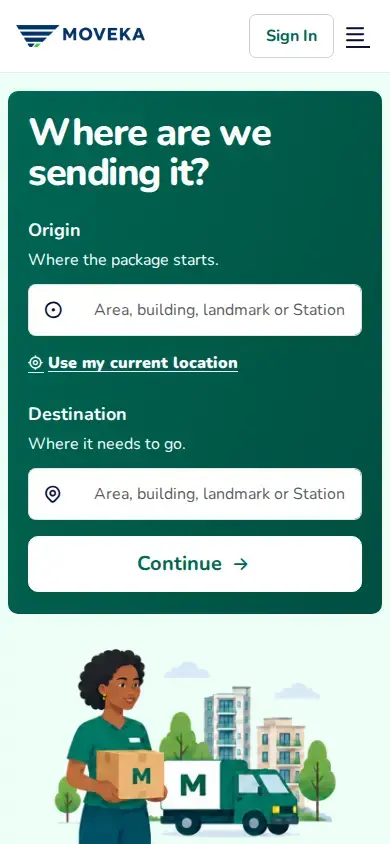
- Open https://moveka.africa. Tap Send a package at the top. From this guide, Get my delivery price below opens the same start page.
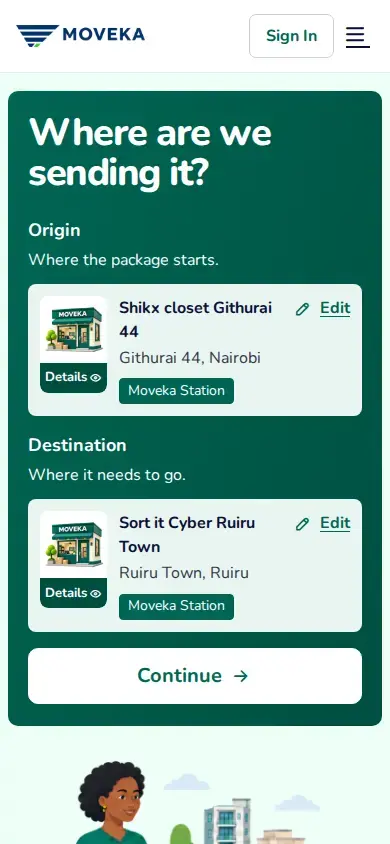
- Under Origin, enter where the package starts. Under Destination, enter where it should go. You can search with an area, building, landmark or Station name.
2. Choose the handover places
A Moveka Station is an attended drop-off or collection point. Doorstep means a courier meets the sender or recipient at the selected place. You can choose a different option at each end.
Choose between a Station and a doorstep
- For a Station, tap Stations in the search results and choose the actual Station. For a doorstep, choose the place and add useful meeting directions. Use Edit if a location is already shown.
- Check both names, then tap Continue. Under Delivery service, compare the available SameDay and Express offers, including timing and starting price. Choose one and Continue.
3. Add the parcel and contact details
- On Package details, say what is inside. Complete the value, size, weight and handling questions shown for your selected service.
- For doorstep pickup, choose the time offered that works for you. If using Schedule later, choose an available day and time, then tap Use this pickup time.
- Tap Continue. Enter the Sender and Recipient details, check both phone numbers, then Continue to Review your delivery.
4. Review and pay with M-Pesa
- Scroll through the route, service, parcel, people and final charge. Tap Edit beside anything that needs correcting.
- Read the delivery terms and prohibited-goods information. If you agree, tick the agreement and tap Continue.
- Check M-Pesa number. Tap Continue if asked to prepare payment, then Pay with the amount shown to send the prompt.
- Complete the prompt on that phone. Keep your PIN private, then return to the Moveka page and wait for payment confirmation.
5. Keep the reference and follow the next step
When payment is confirmed, keep Package reference—the code that identifies this parcel—and tap Track package. Read What happens next: take the package to the booked origin Station, or be ready at the accepted doorstep pickup location and time.
No prompt or payment still unclear?
Check the current result on the same delivery’s payment page. Retry preparing payment handles a preparation error. Try M-Pesa again sends another prompt when offered; complete only the prompt you intend to pay. If payment is confirmed but tracking is not ready, tap Check package status.
Check a payment that is pending or unclear
Ready? Start with the route and Moveka will show the available delivery options.