Ready to send today’s orders? Moveka lets you choose the deliveries you want to pay for together, then shows their current charges before you continue. This guide covers delivery charges paid by your business before pickup.
Before you start
Finish reviewing each order and tap Make ready to pay. That puts it in Ready to pay—the list of reviewed deliveries waiting for payment. Have access to the phone or digital payment method you plan to use.
1. Open Ready to pay
- Open https://moveka.africa, tap the top-right three-line menu, then Merchant sign in. At https://merchants.moveka.africa/login, enter Email and Password and tap Sign In.
- If asked, choose the business whose orders you are paying for and tap Open delivery workspace. A business is the shop or team these orders belong to.
- On Deliveries, tap Ready to pay. From another merchant page, tap Menu, then Ready to pay.
2. Choose the orders to include
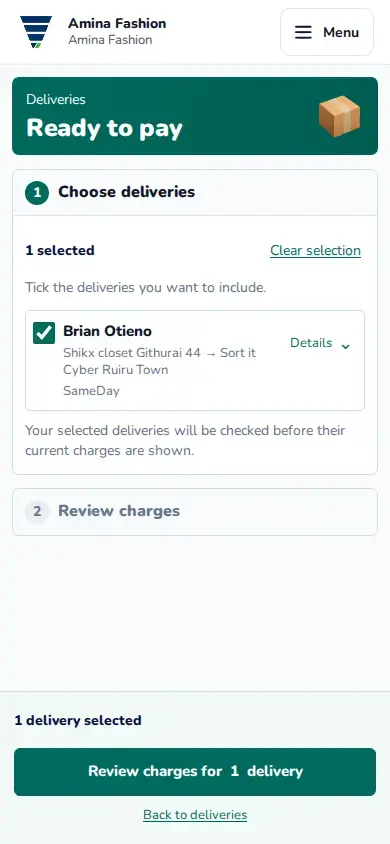
- Tick the deliveries you want to pay for now. Match each customer name and route; tap Details for more information.
- Check the number selected, then tap Review charges for 1 delivery, or the same button showing your selected number.
3. Check the current total
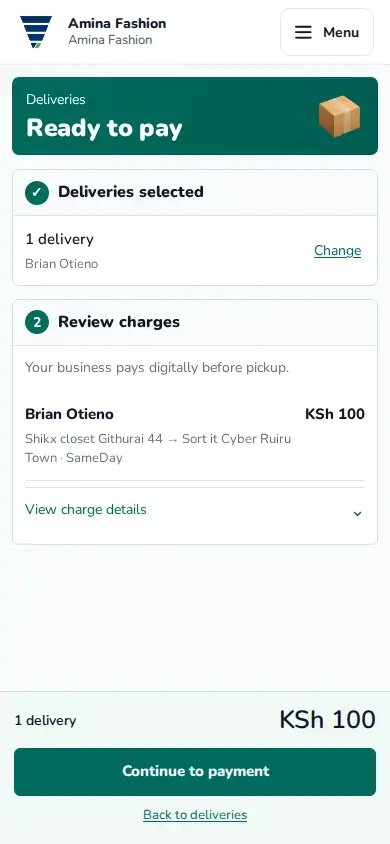
- Read the selected delivery names and their current charges. Check the total at the bottom.
- Picked the wrong orders? Tap Change. If Moveka shows an updated charge or route, check it and tap Review updated charges.
- When the details are right, tap Continue to payment.
4. Complete payment and check the result
Ways to pay digitally with Moveka
- Follow the digital payment method offered. Check the amount and payment details before confirming.
- If using M-Pesa, complete the prompt on the intended phone. Enter your PIN on your own phone and keep it private.
- Wait for Payment confirmed and the package details. Then open Menu, Tracking to follow the deliveries and their next handoff.
Add money to a merchant wallet
What to do while payment is pending
Still waiting or something failed?
Open Deliveries, find the order under Awaiting payment and tap View. Follow the current payment result there. Use Continue payment if offered. If the page is checking payment, check that existing result before deciding to send another prompt.
Check the current payment result before retrying
If Ready to pay is empty, return to Deliveries, tap Resume beside the unfinished order and finish its review. If you can see the orders but cannot pay, ask a Business Admin or Delivery Operator to continue.