Explore Moveka

Guide

Update your name and contact details

Edit your profile name or replace the email address or phone number connected to your login.

Published 23 Oct 2026 · Updated 25 Oct 2026 · By Moveka

After sign-in, open Menu and choose Profile. Your profile shows the name and contacts Moveka uses to reach you, including whether each contact is verified.
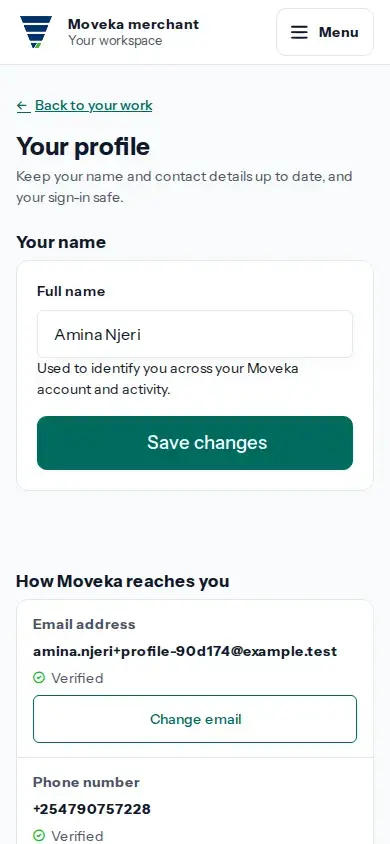
Review the name and contact details used for your Moveka login.
Practice example: Review the name and contact details used for your Moveka login.

View larger image: Review the name and contact details used for your Moveka login. (opens in a new tab)

  • To change your name, edit Your name and tap Save changes.
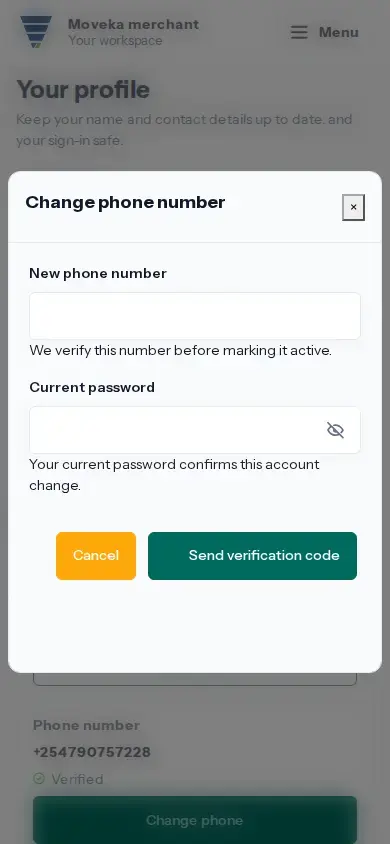
  • To replace your email or phone, choose Change email or Change phone. Enter the new contact and your current password. Complete an authenticator check if the page asks, then tap Send verification code.
  • On Confirm your new email address or Confirm your new phone number, enter the six-digit code and tap Verify email or Verify phone. After an email change, sign in again with the new address. After a phone change, return to your profile and check its status.

Change your password from your profile

Add an authenticator app for an extra sign-in check
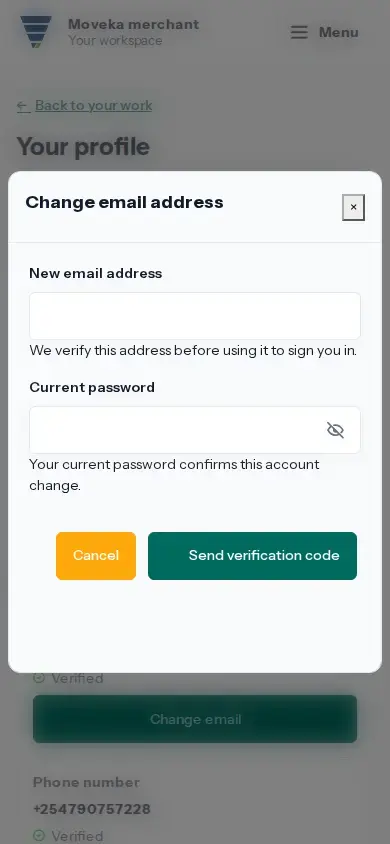
Enter a new email and confirm the request with your current password.
Practice example: Enter a new email and confirm the request with your current password.

View larger image: Enter a new email and confirm the request with your current password. (opens in a new tab)

Enter a number you control and confirm the request with your current password.
Practice example: Enter a number you control and confirm the request with your current password.

View larger image: Enter a number you control and confirm the request with your current password. (opens in a new tab)

The code is valid for ten minutes and allows five tries. If the form says a contact change was not confirmed, choose Review current profile and check its status before trying again.