An authenticator adds a code check at sign-in and for some sensitive changes. Set it up from Profile when you are signed in.
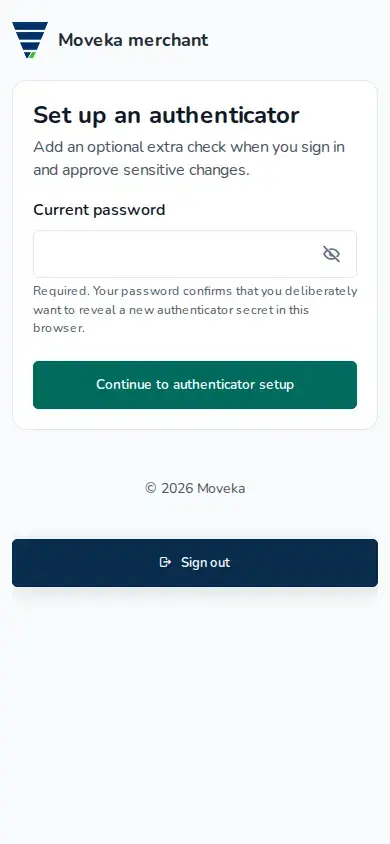
- In Profile under Sign-in, tap Set up authenticator. Enter your current password, then tap Continue to authenticator setup.
- Scan the QR code with your authenticator app. If you cannot scan it, copy the Authenticator secret into the app using its manual-entry option.
- Enter the current Authenticator code from the app, then submit to confirm authenticator. If you correct a failed entry, use the current code shown in the app.
- On Save your recovery codes, store the codes somewhere secure and do not share them. Each works once, and this page is shown only once. Tap Continue to Moveka.
If the setup result is uncertain, choose Check authenticator setup and continue signing in to review the current security setup. Do not submit the same confirmation again.