A goods receiving wallet is where confirmed digital payments for eligible Pay on Delivery orders are sent. The Merchant Owner sets it up for a named business. Setting up the wallet does not request payment from a customer.
Before you start
- Sign in to the merchant account and open the correct business workspace. Check the business name before changing wallet settings.
- Have access to the wallet email and phone. When a code arrives by email or text, return to this Moveka wallet page to enter it; you may also need to complete a security check.
- Only the Merchant Owner can create or assign the goods receiving wallet. If you are another team member, ask the owner to complete these steps.
Create or choose the wallet
- Open Menu, then Wallets. Check the business name shown on the page.
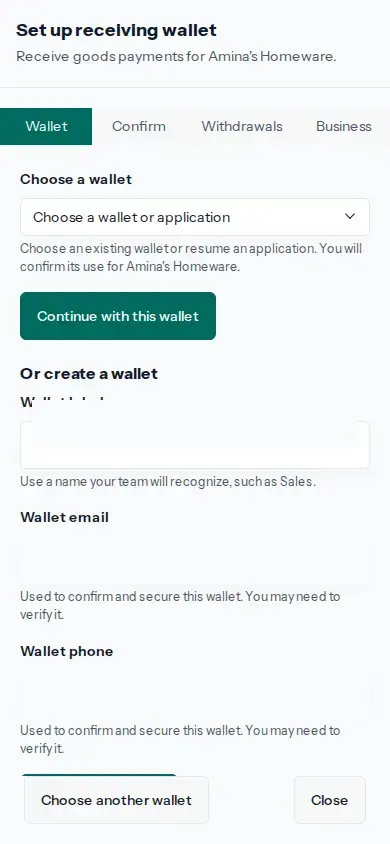
- Tap Set up receiving wallet. To use an existing wallet, choose it under Choose a wallet and tap Continue with this wallet. To create one, enter a label, wallet email and wallet phone, then tap Save wallet details.
- Tap Send email code and Send phone code. When each code arrives, return to this Moveka page and enter it under Confirm email or Confirm phone. If the contact shown is wrong and Save wallet details is available, correct it there before requesting a code.
- Choose a four-digit Wallet PIN, enter it again to confirm, and complete the requested security check, then tap Create wallet. Keep the PIN private.
- Wait for Moveka to confirm the wallet. Use Check this application when shown. If Confirm wallet appears, complete the security check and tap Confirm wallet. Use Retry this application only when offered, with the original Wallet PIN.
- If you opened setup from a Pay on Delivery draft, use the Set up wallet or Continue wallet setup action there and choose Open wallet setup. After setup, tap Return to Sending to go back to that same draft.
Prepare withdrawals and assign this business
- If the page says the wallet needs a withdrawal method, tap Continue withdrawal setup when it is shown. Select an available provider, enter and review its destination details, then enter the current Wallet PIN and complete the security check before choosing Add method. If the provider sends an activation code, return to Moveka, enter it on the method page and tap Confirm method.
- Return to wallet setup. Check that the wallet and withdrawal method are active, confirm the business name, then tap Use this wallet. Look for Receiving wallet ready.
- If the wallet is unavailable, follow the message shown on this page before using Pay on Delivery.
- When preparing an eligible delivery, choose Pay on Delivery and review the amount to collect, collection charge and expected proceeds. Pay the delivery charge upfront. The recipient's digital goods payment must be confirmed before the package is released.
How Moveka Pay on Delivery works
If wallet creation is still being checked, reopen the same wallet application in Wallets and check its status. For a customer payment, check that same order. A wallet setup, payment request or withdrawal request is not proof that money has arrived or been sent.