Invite a colleague when they need their own Moveka login for your shop’s delivery work. They do not get access until they accept the invitation.
Send an invitation
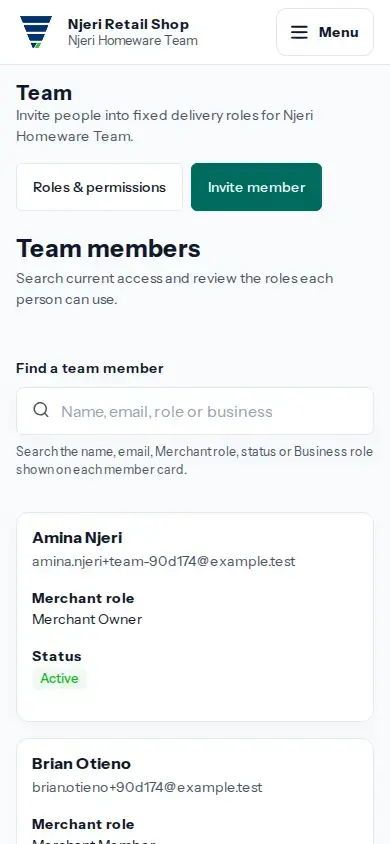
- Sign in to merchants.moveka.africa. Open the business where you want to manage access, then open Team from the business menu. Team is available to the Merchant Owner, Merchant Admin and Business Admin for their assigned business.
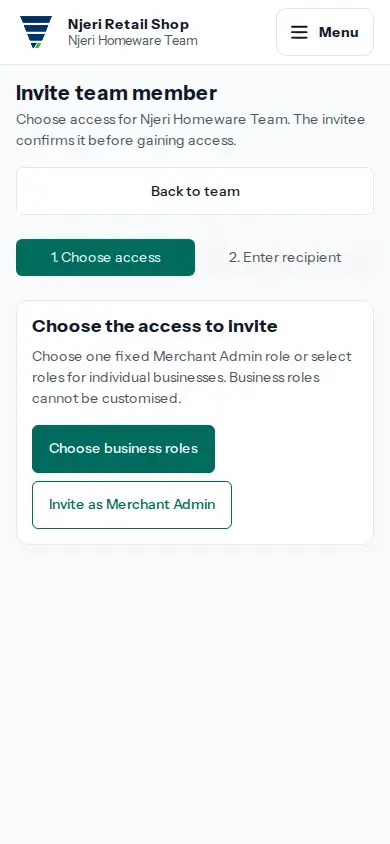
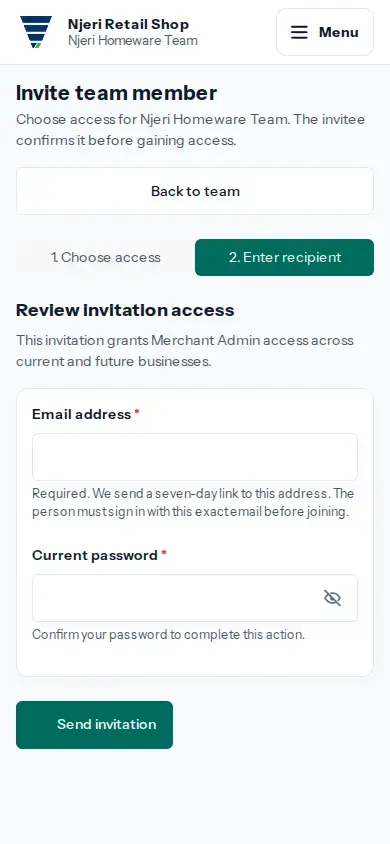
- Tap Invite member. Choose business roles to give access only to selected businesses, or choose Merchant Admin for merchant-wide access. Only the Merchant Owner can invite a Merchant Admin.
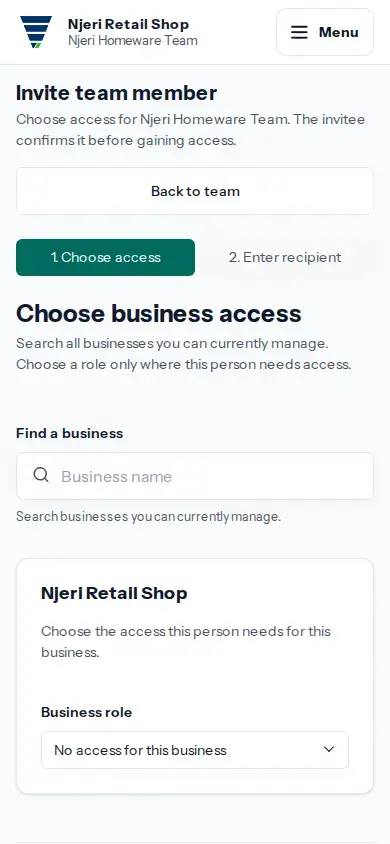
- For business access, search for a business, choose the fixed role the person needs, and repeat for any other businesses. Review the access list before continuing. Business Admin can invite only Delivery Operator or Delivery Viewer roles in businesses they manage.
- Enter an email address where the person can receive the invitation. The link is sent there and expires after seven days. Complete the security check shown, then select Send invitation.
- Return to Team and check Pending invitations. The status shows whether the person is waiting, the link expired, or they already have access. Open Roles & permissions if you need to compare what each role allows.
Delivery Viewer can read delivery records. Delivery Operator can create, review and check out deliveries. Business Admin has those delivery abilities and can manage lower delivery roles. Merchant Admin can manage business-scoped roles. The Merchant Owner can invite Merchant Admins and manage merchant-wide membership; wallet configuration is Owner-only.
If the invitation does not arrive
Open Team and check the email delivery status. If Resend is available, use it and complete the security check. A resend is queued; check its delivery status before asking the person to look in their inbox or junk folder. If Resend is unavailable, read the reason shown beside it and follow that instruction.