Sign in to your merchant account and open the business whose catalogue you are updating. Open Menu, choose Accounts, open that business, then choose Imports. This workflow is for the Products and SKUs import; it adds catalogue records.
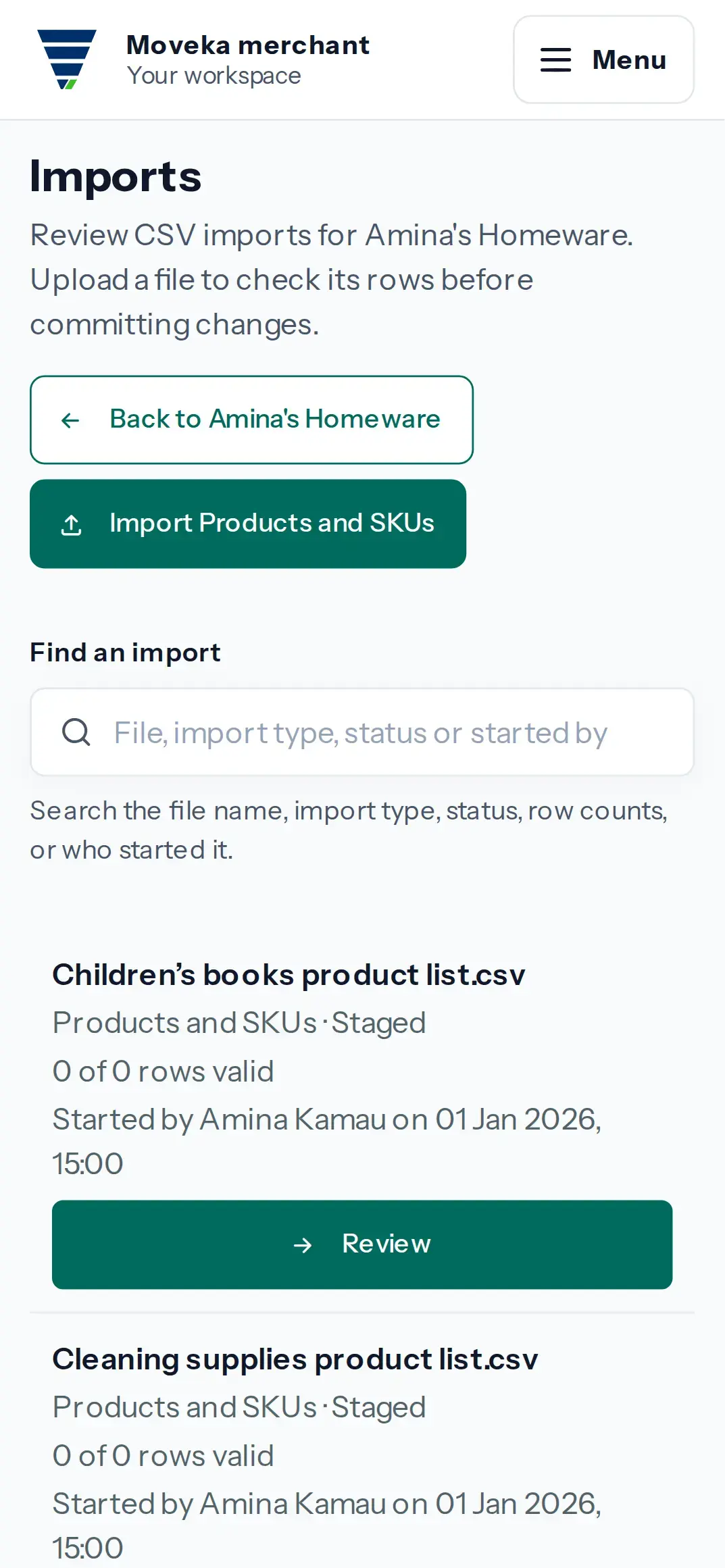
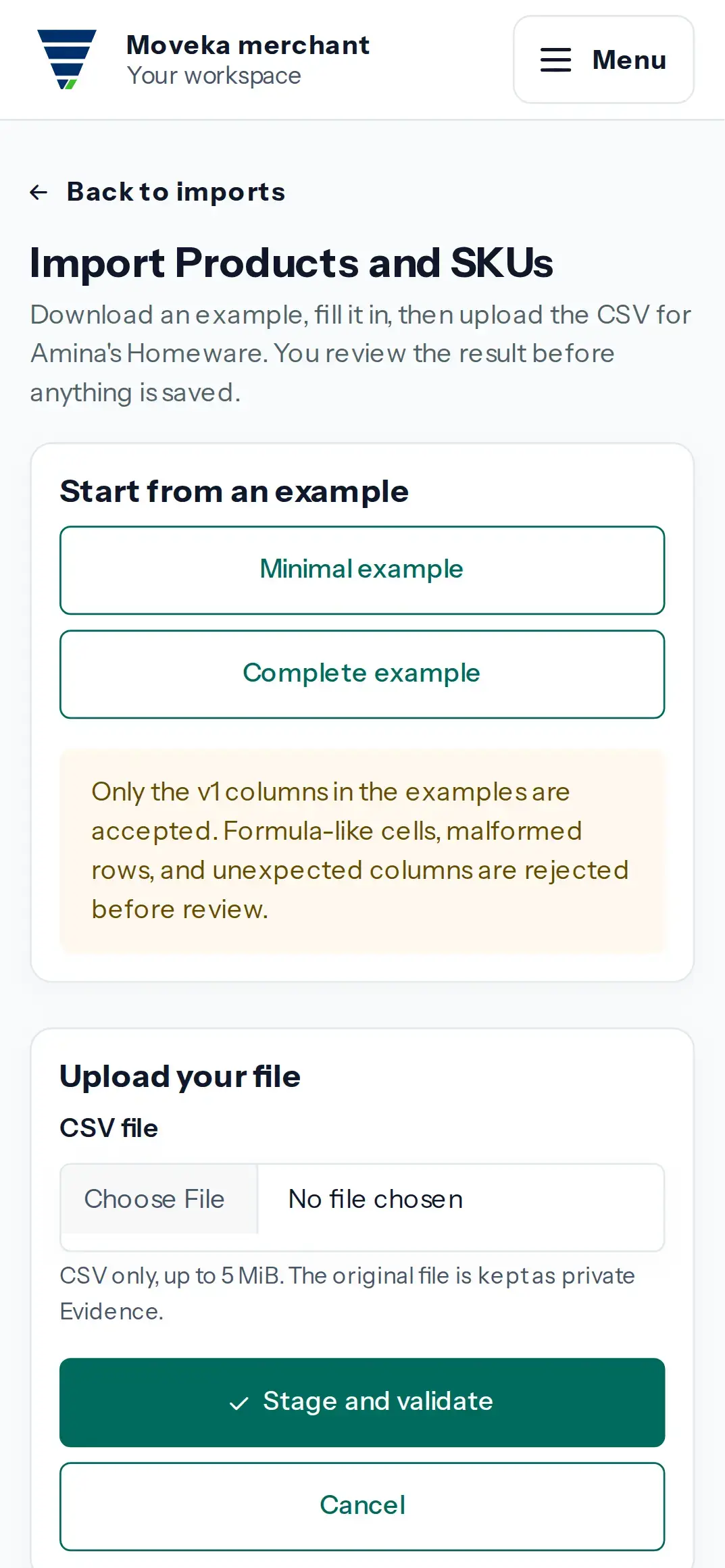
- Choose Import Products and SKUs. Start with Minimal example or Complete example and fill in the CSV. Keep the headings shown in the example—for example, product_reference, product_name, sku_code, unit_of_measure and selling_price_kes—and do not add columns.
- Choose the CSV file (up to 5 MiB), then tap Stage and validate. Moveka checks the rows before saving any catalogue changes.
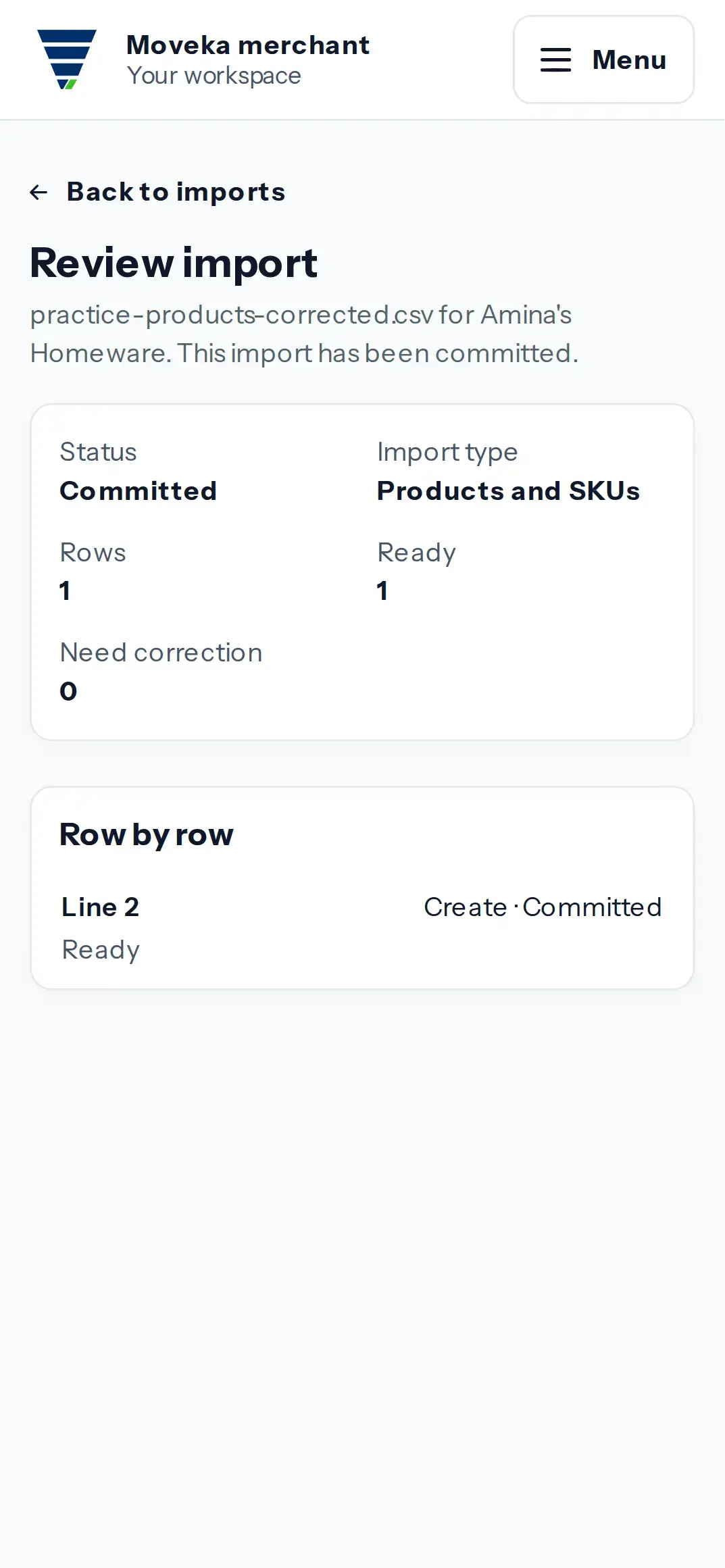
- On Review import, check Status, Rows, Ready and Need correction. Read each flagged line and its field message before deciding what to do.
- If every row is ready, tap Commit complete batch. The whole batch is committed together. Return to Imports and open the batch to confirm its status is Committed.
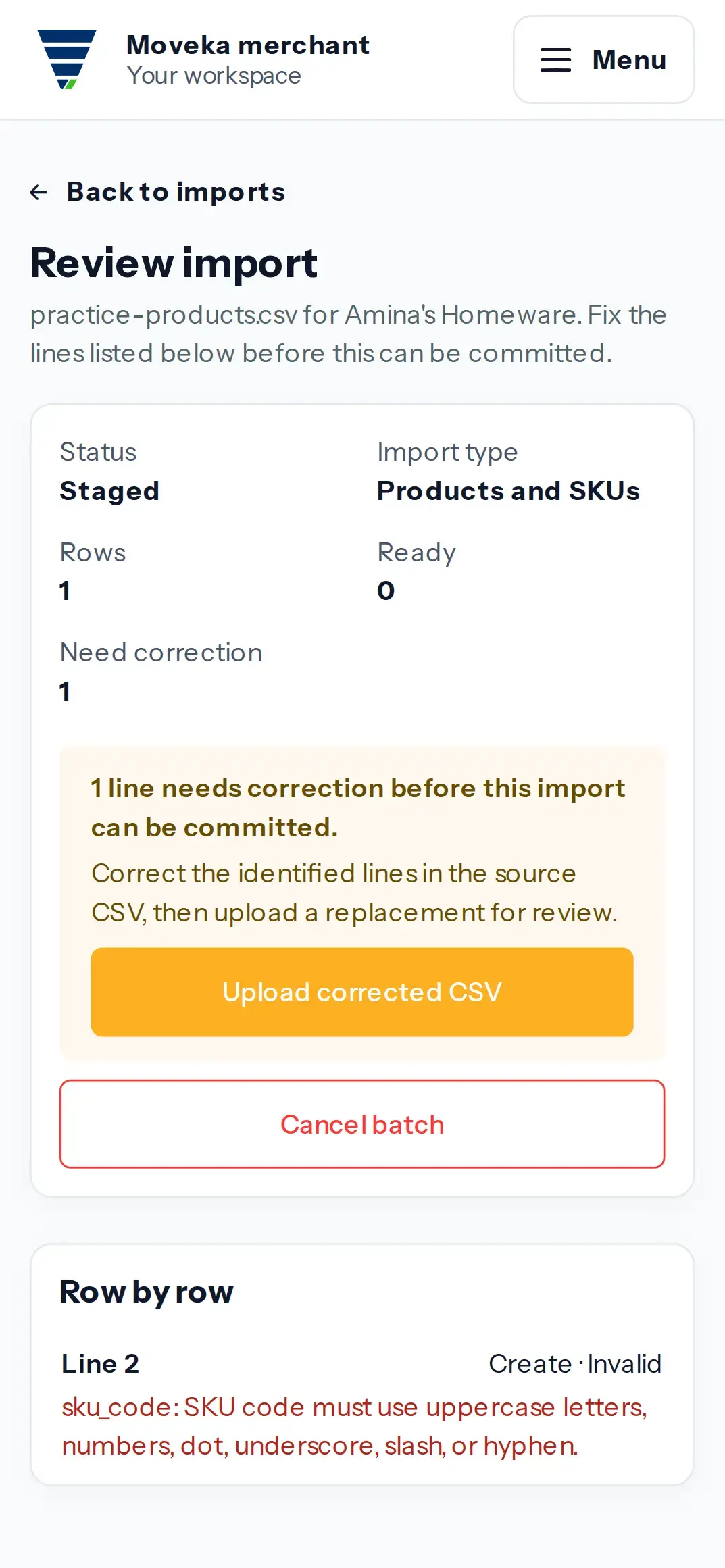
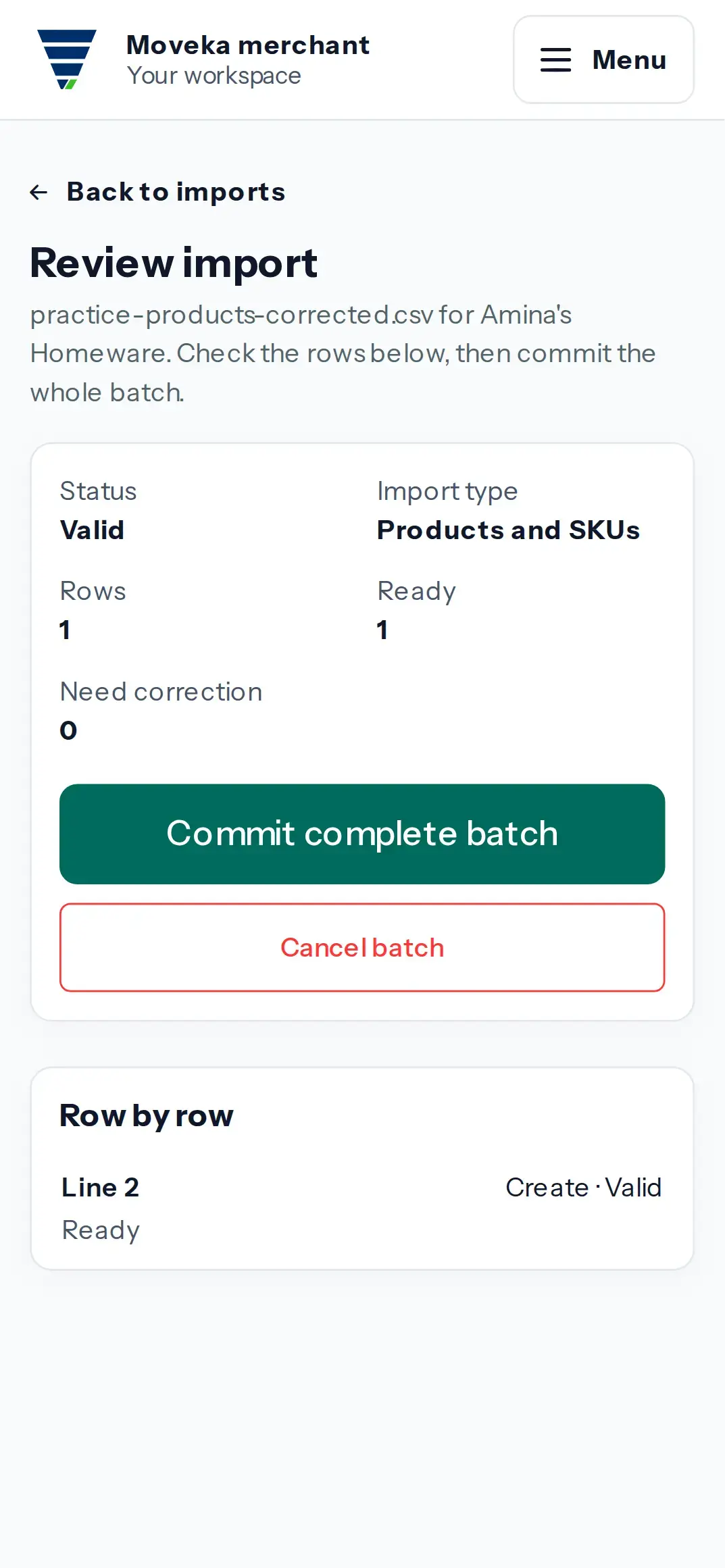
A batch with lines needing correction cannot be committed. Correct those lines in the original CSV, tap Upload corrected CSV, and stage the replacement for review. If the catalogue changed since review, the commit is refused and you must review and upload a corrected CSV. Cancel batch stops an uncommitted batch; the page confirms that nothing was saved. Ask an account editor to upload or commit if those controls are not shown.