This guide applies when you have Account Edit access and the webhooks service is already enabled for this business. Open Menu, choose Accounts, open the business and choose Integrations.
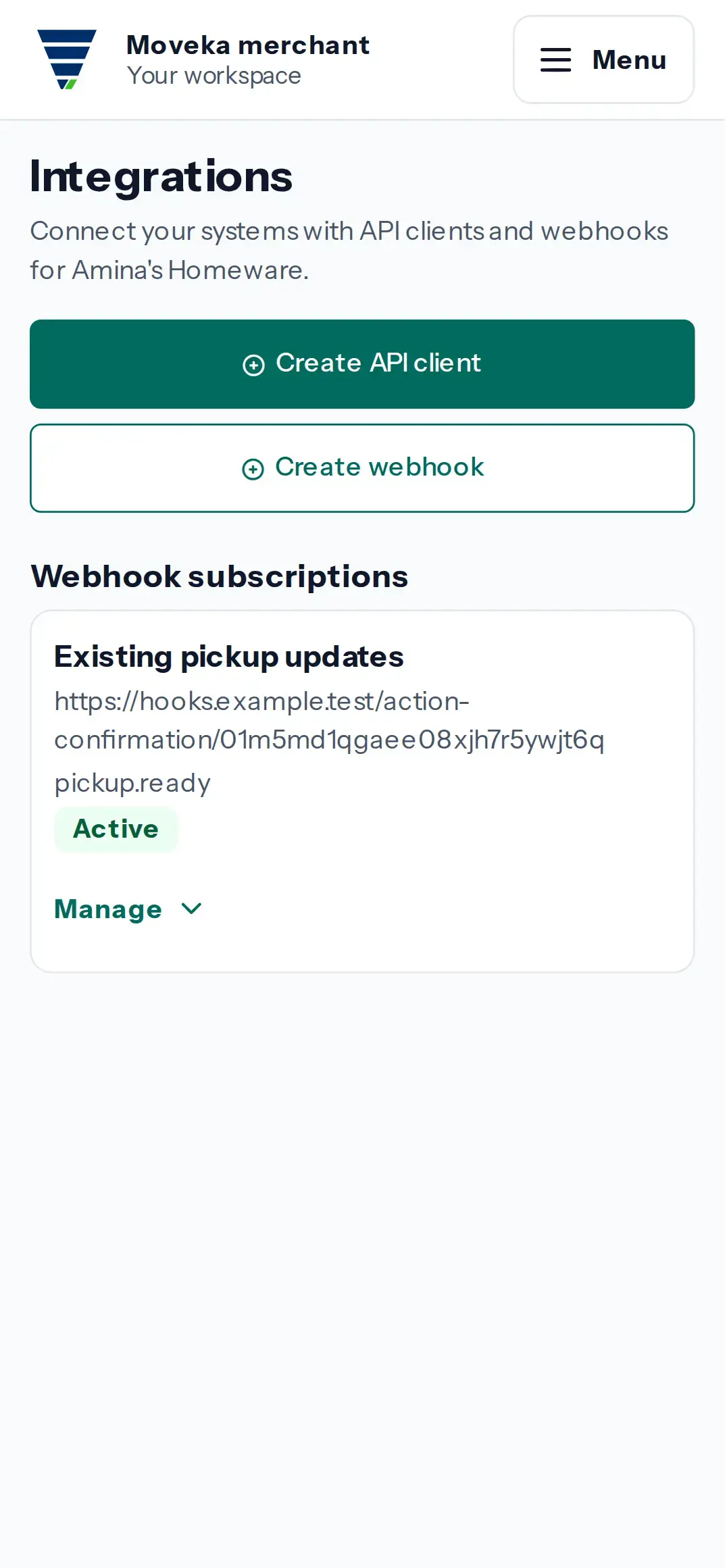
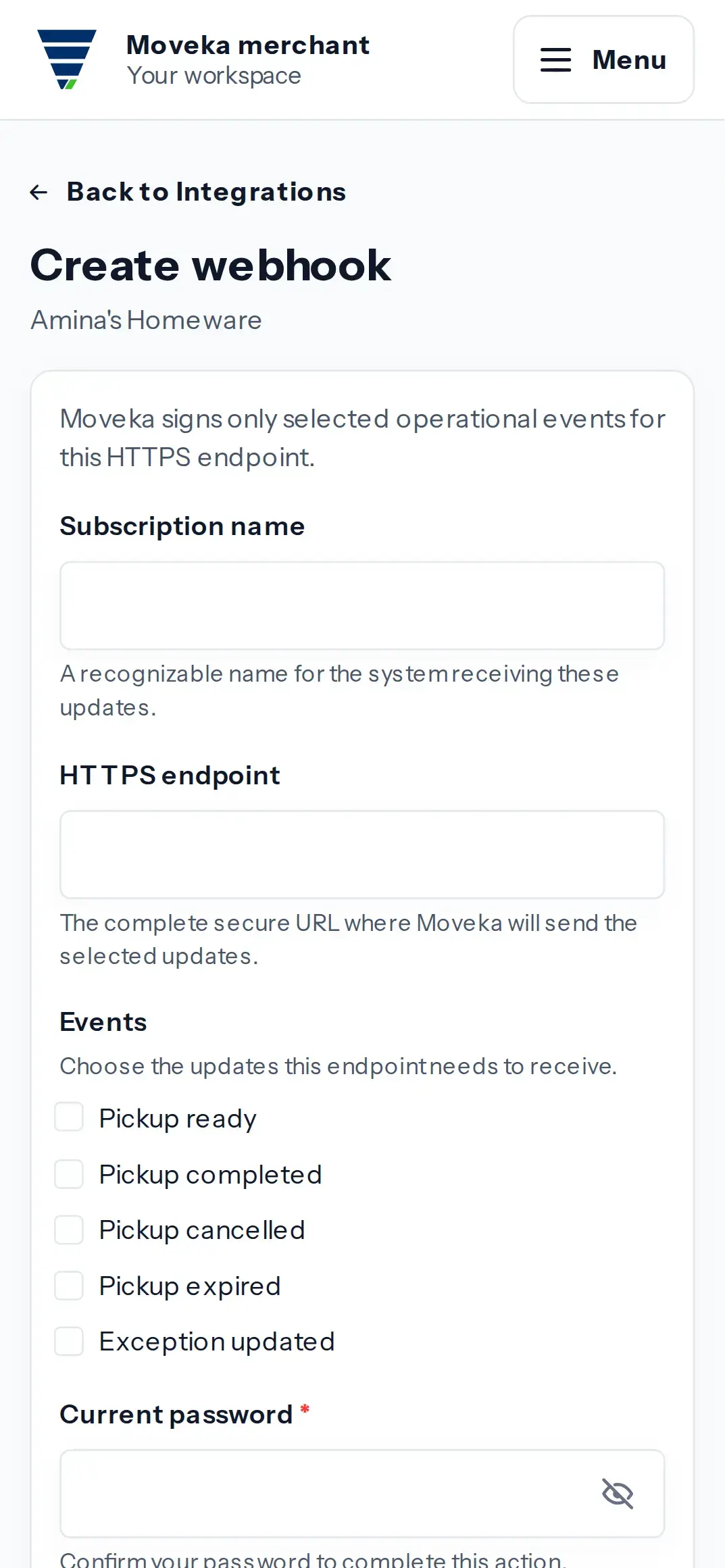
- Choose Create webhook. Enter a Subscription name that will help you recognize the receiving system.
- Enter its complete HTTPS endpoint. Choose only the events it needs: Pickup ready, Pickup completed, Pickup cancelled, Pickup expired or Exception updated. The endpoint must use HTTPS on the public internet.
- Complete the security check and choose Create webhook. If the check is refused, review the message, enter a fresh proof and submit again; your entered name, endpoint and selected events remain available.
- Moveka shows the signing secret once. Store it in the receiving system’s secure settings now, then choose I saved it. Confirm the subscription appears under Webhook subscriptions as Active.
- On Integrations, review Webhook delivery attention for current failed deliveries and their response status or No response. A later successful delivery clears the alert.
The signing secret is shown once and cannot be retrieved later. For an existing active subscription, choose Manage, then Rotate secret and complete the security check to receive a replacement secret once. Update the receiving system with the new value. Revoke disables a subscription. A delivery attempt is not proof that the receiving system received the event.