Wallet information comes from the wallet service. You can review a wallet's balance and available amount, then open its statement to find posted money in and out.
- Sign in to the merchant account, open the correct business workspace and choose Wallets from Menu.
- Find the wallet by its label. Check Balance, Available and Held. Available is the amount currently available for wallet actions; Held is already reserved by the wallet service.
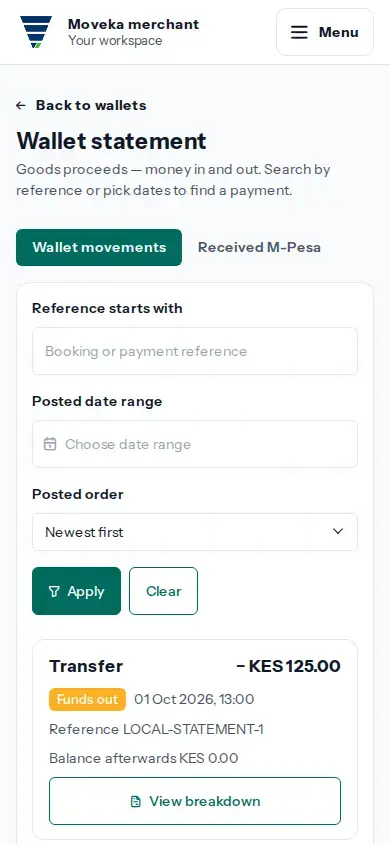
- Tap Statement to see Wallet movements. Search by a reference or choose a posted date range, then tap Apply.
- Use Newest first or Oldest first to change the order. Tap View breakdown for a movement, or use Previous and Next to move through results.
- Tap Withdrawals to review withdrawal requests and their status. A succeeded status is the wallet provider's completed result; processing or an unknown result is not complete.
If a wallet or statement is temporarily unavailable, use the Try again link on that page. Do not treat an unavailable balance or a payment prompt as confirmation.