Team shows each person’s merchant-wide role, assigned business roles and current status. Open it from the business menu while the correct merchant and business are shown. The Owner and Merchant Admin manage merchant membership; Business Admin manages lower delivery roles only in assigned businesses.
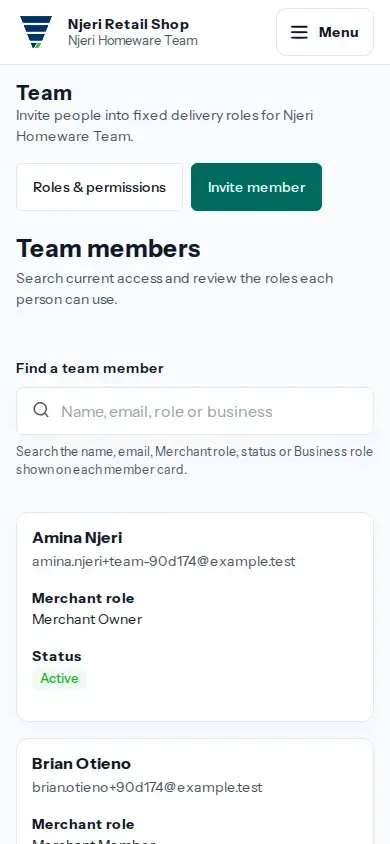
- Find the person under Team members. Use the search box to look up their name, email, role or business. Check their current roles before making a change.
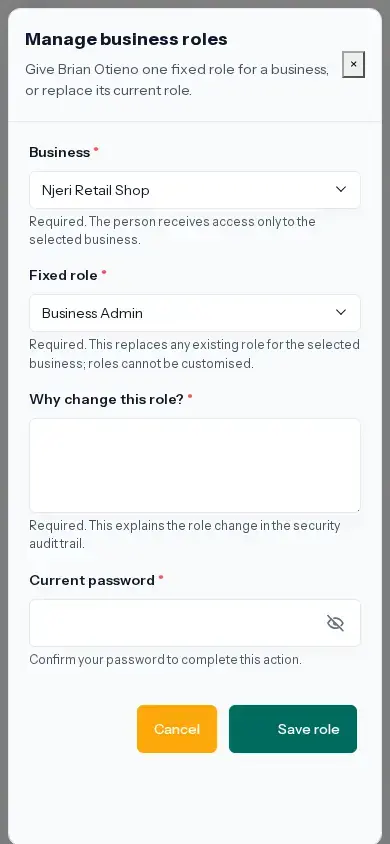
- To assign or replace access for a business, tap Manage roles. Choose the business and fixed role, enter why the role is changing, complete the security check and tap Save role. The new role replaces that person’s existing role for the selected business.
- To remove a business assignment, tap Revoke beside that role, enter the reason and complete the security check. If it was the person’s last business role, they also lose that merchant membership.
- The Owner or Merchant Admin can suspend, reactivate or remove a member’s merchant access. Choose the matching action, enter a reason, complete the security check and review the updated status on Team.
- Tap Roles & permissions to read the current role descriptions before assigning access. Roles are fixed; choose the least access the person needs for their work.
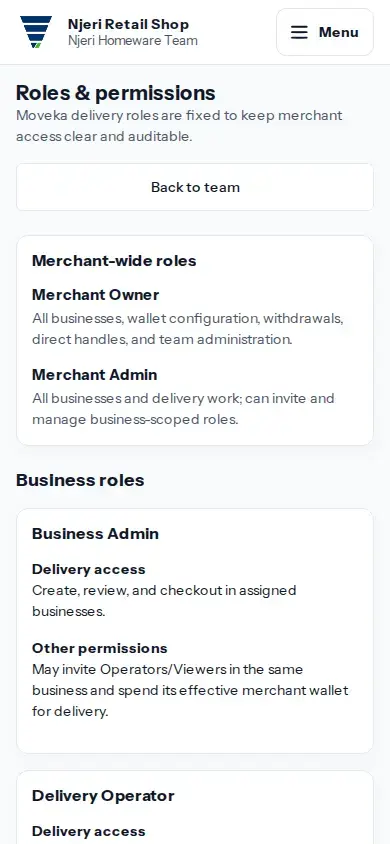
Only an Owner can invite a Merchant Admin. Merchant Admin has access across all businesses. Business Admin, Delivery Operator and Delivery Viewer are limited to assigned businesses.
If a save result is unclear, use the page’s Check this request or Review Team action, then inspect the person’s current role and status before submitting another change. If you cannot manage that access, ask the Merchant Owner or Merchant Admin to make the change.