Open the organization and choose Who has access. This page shows each member’s status, roles and any extra actions. Adding a person alone does not give them permission to use the account.
To review someone already on the account, use Find a person to search by name, email, phone or role. Use Next or a page number to see more results. If no person matches, choose Clear search, then try another name or contact detail.
Add a person and give the right access
- Choose Add a person and select the existing Moveka user. Complete the requested verification, then check that the person appears in the access list.
- Choose Give someone a role. Select the account member and the role needed for their work. Account administrator can manage the account, including its Stations.
- Choose the active person who approved the role and enter why it is needed. High-impact roles require an approver other than the person receiving the role. Complete verification and choose Give role.
- If a role does not cover one specific task, choose Allow one extra action. Select the person and the action, enter why the exception is needed, complete verification and choose Allow action.
- Review the person’s current status, role scope and reason on Who has access. Remove a role or extra action from this page when it is no longer needed.
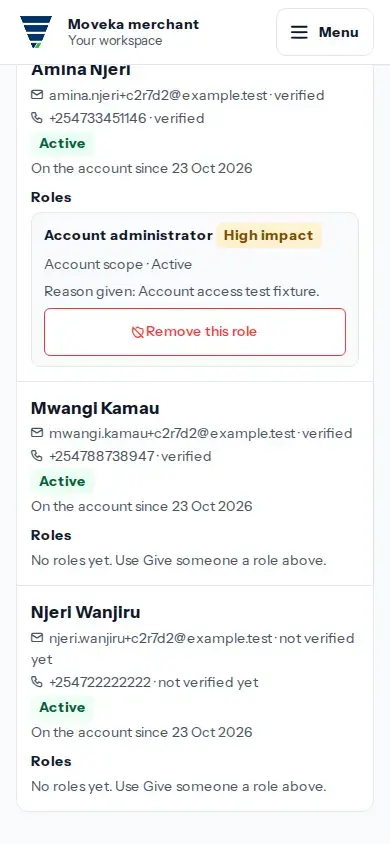
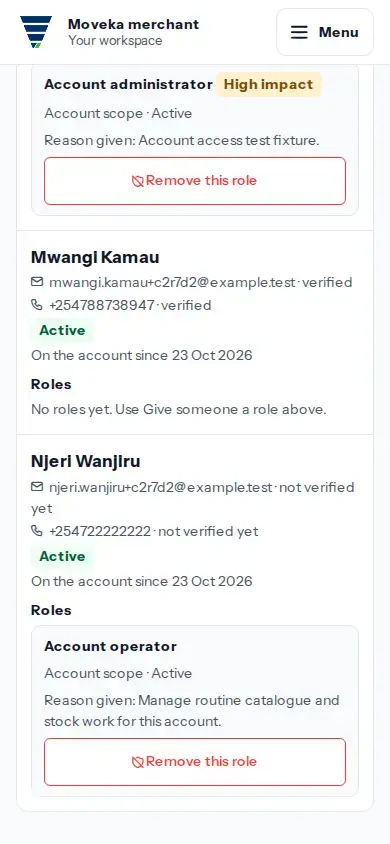
If a result is unclear, use Check account access or Review current account access. Inspect the listed membership, roles and extra actions before trying again. If the person has no role, assign one; membership by itself grants no access.
The first administrator invitation is handled from the invitation panel on this page. The invited person must accept it; for an existing Moveka user you can instead add their account membership here.