Explore Moveka

Guide

Review a delivery exception

Find a delivery problem recorded for your business and read its current status and timeline.

Published 23 Oct 2026 · Updated 25 Oct 2026 · By Moveka

Sign in to your merchant account. Open Menu, choose Accounts, find the business you need and tap Open. Choose Exceptions. The page is titled Exception cases and lists delivery problems recorded for this account.
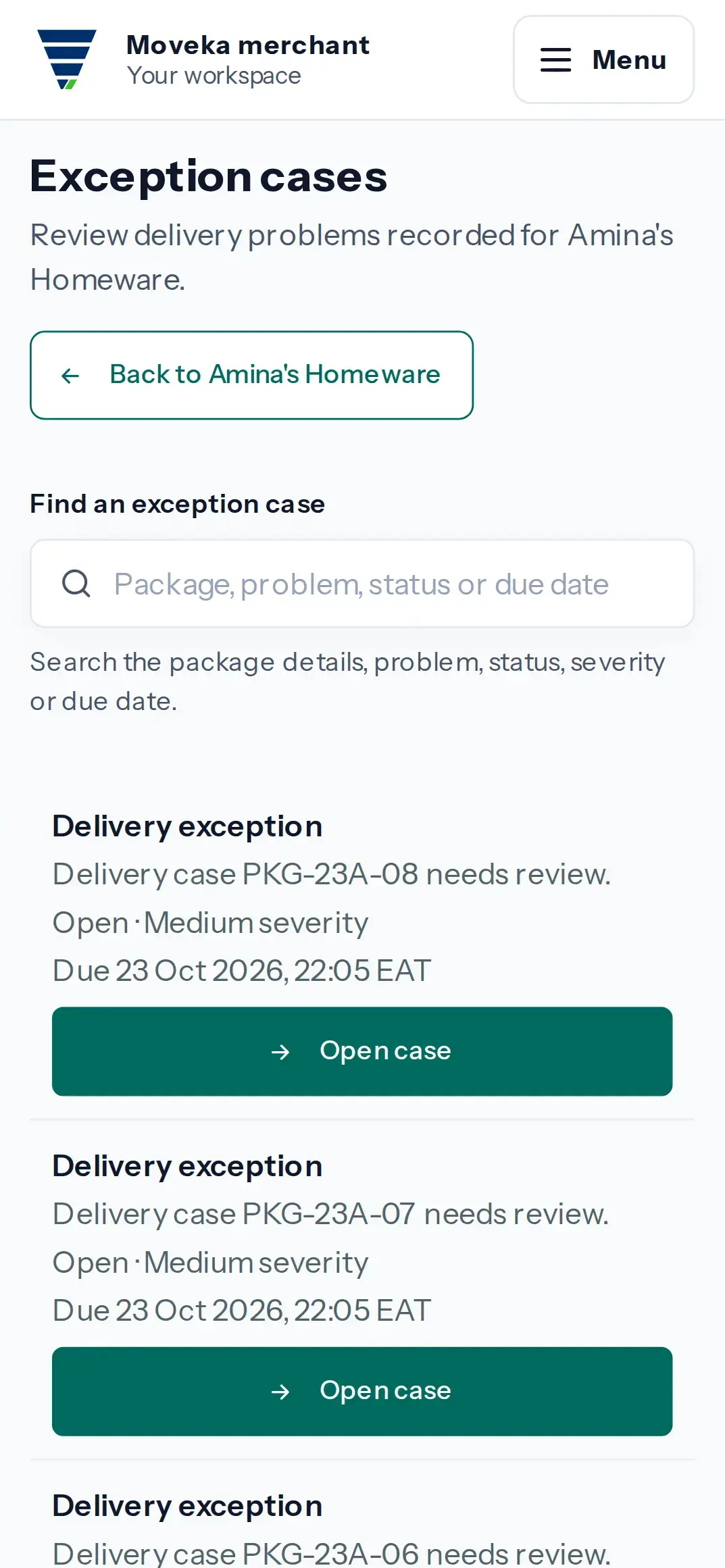
Practice screen: find delivery problems recorded for the selected business.
Practice example: find delivery problems recorded for the selected business.

View larger image: Practice screen: find delivery problems recorded for the selected business. (opens in a new tab)

  1. Search by package details, problem, status, severity or due date. Review the summary, status, severity and due date shown for a case.
  2. Choose Open case to read what Moveka has recorded so far. Check the case status, summary and visible activity timeline.
  3. Use the package details in the case to find the related delivery or tracking record and follow its current instructions.
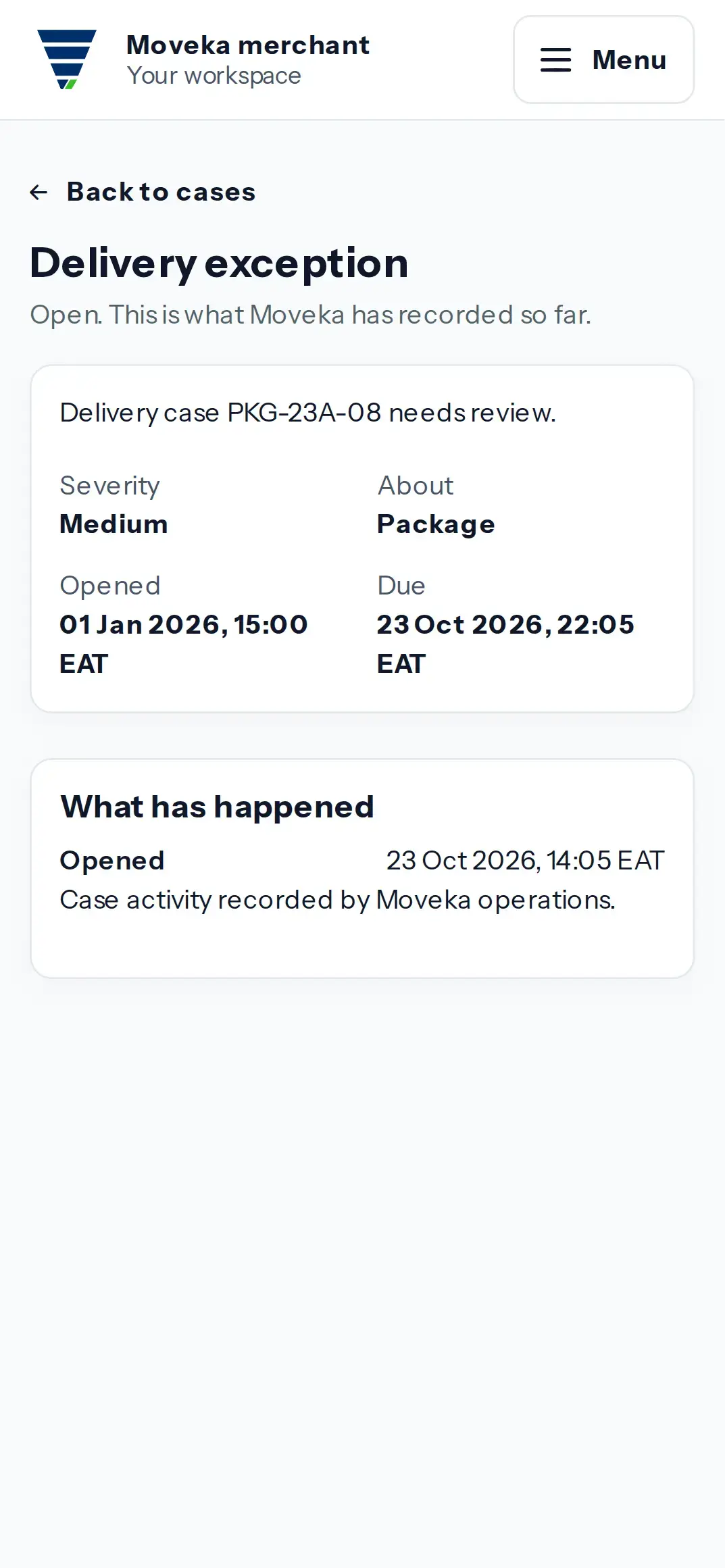
Practice screen: review the case summary and current account-visible details; internal note and resolve controls are not available to this merchant.
Practice example: review the case summary and current account-visible details; internal note and resolve controls are not available to this merchant.

View larger image: Practice screen: review the case summary and current account-visible details; internal note and resolve controls are not available to this merchant. (opens in a new tab)

If no cases are listed, there are no exception cases recorded for this account yet. If search finds nothing, try another package detail or clear the search. Account members can review the case here; adding internal notes and resolving cases are Station operations actions and are not available on this account view.