Use this when the product is not yet in this account’s catalogue. You need account edit access. A product has a name and business reference; its first SKU identifies the sellable unit, how it is counted and its selling price.
Open the catalogue
- Sign in to the merchant workspace. Open Menu, then Accounts.
- Find the organization by name, legal name or account reference and tap Open. Check the account name, then tap Catalogue.
- Tap Add Product.
Enter product and first SKU details
- Under Product Information, enter Name and Reference. Reference is your business’s product reference and cannot be changed after creation. Category, Restriction reference and Description are optional.
- Under First SKU, enter SKU, Unit and Selling price (KES, whole amount). SKU is the stock code for this sellable item; use uppercase letters, numbers, dot, underscore, slash or hyphen. SKU and Unit cannot be changed later. Unit describes how one item is counted, such as each, box or kilogram.
- Buying price is optional. Add package description or physical measures only when you have those details. Prices are whole KES amounts.
- Check the details and tap Create product. Read any field-level message, correct that field and submit again.
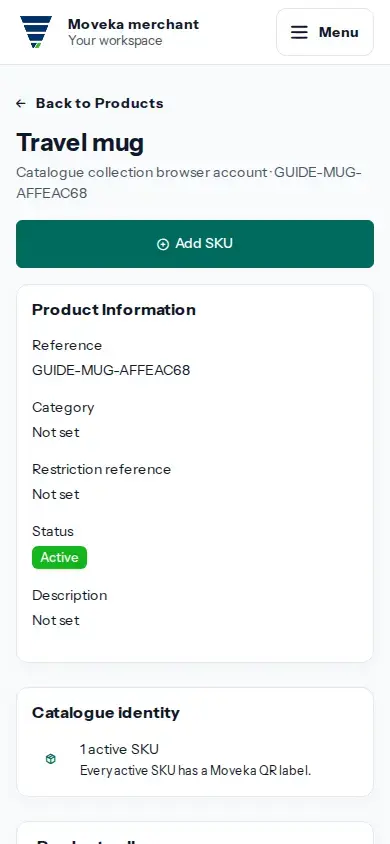
If the save result is uncertain, use Review current product if shown, or return to the catalogue and check whether the product appears before trying again. Do not create it twice.