You need account edit access to change a product or SKU. Check the account name before editing.
Find a product
- Sign in to the merchant workspace. Open Menu, then Accounts. Find the organization and tap Open, then tap Catalogue.
- Use Find a Product to search by product name, category or reference. Open View on the matching row and check the product and active SKUs.
Edit details or add a SKU
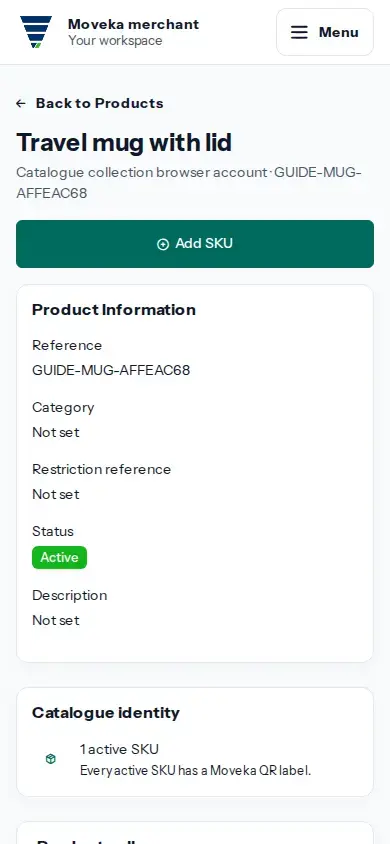
- Tap Edit Product to change editable product details, then tap Save changes. The business Reference is read-only after creation.
- Tap Add SKU to add another sellable item code. Review the form help before saving: an existing SKU code and Unit cannot be changed later.
- To update an existing SKU, open its Edit details action, change the available fields and save.
Archive a product or SKU
- Use Archive on the product or SKU only when it should no longer be used. Read the confirmation and any blocking message before continuing.
- If existing stock or records prevent archiving, resolve the stated issue through the appropriate stock or account process; do not try to bypass the restriction.
If you cannot edit, ask the account administrator to check your edit access. If a save result is uncertain, return to the product page and review its current details before submitting again.