The Stock counts list shows recorded counts for this account. Use it to check a count’s status, Station, storage area, stock-line count and snapshot time. This guide covers viewing existing records.
- Sign in to the merchant workspace. Open Menu, then Accounts. Find the organization and tap Open. Check the account name, then tap Stock counts.
- Review each row. The heading is the Station; the row also shows the storage area, status, number of stock lines, and snapshot date and time.
- To find a record, enter a Station, storage area, status, stock-line count or snapshot time in Find a stock count, then press Enter.
- If there are no matches, try another search term or tap Clear search. If the list says no stock counts have been recorded, there are no count records for this account yet.
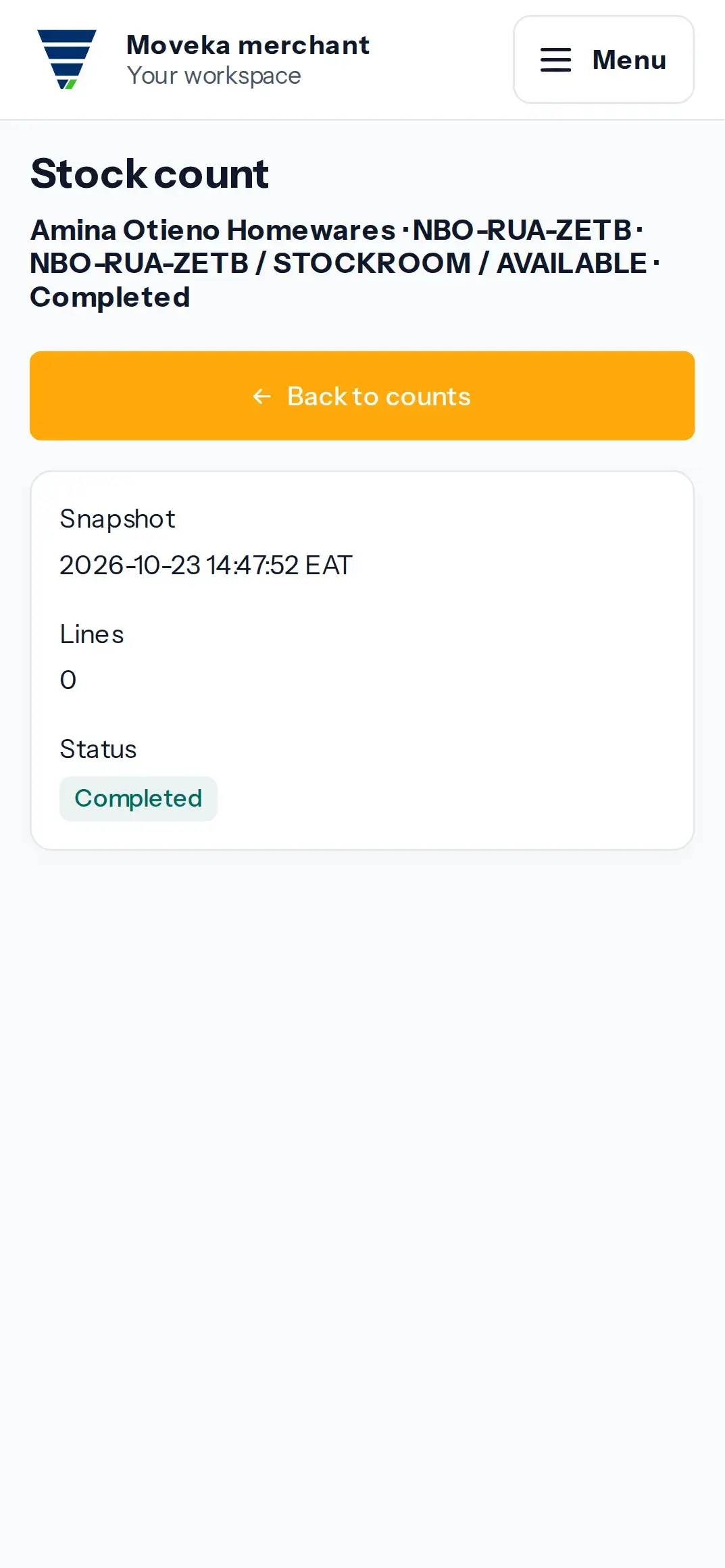
Open means the count has not been submitted. Recount Required means a difference was recorded. Completed means the count was recorded without a stock adjustment. Adjusted means the count resulted in a stock change.