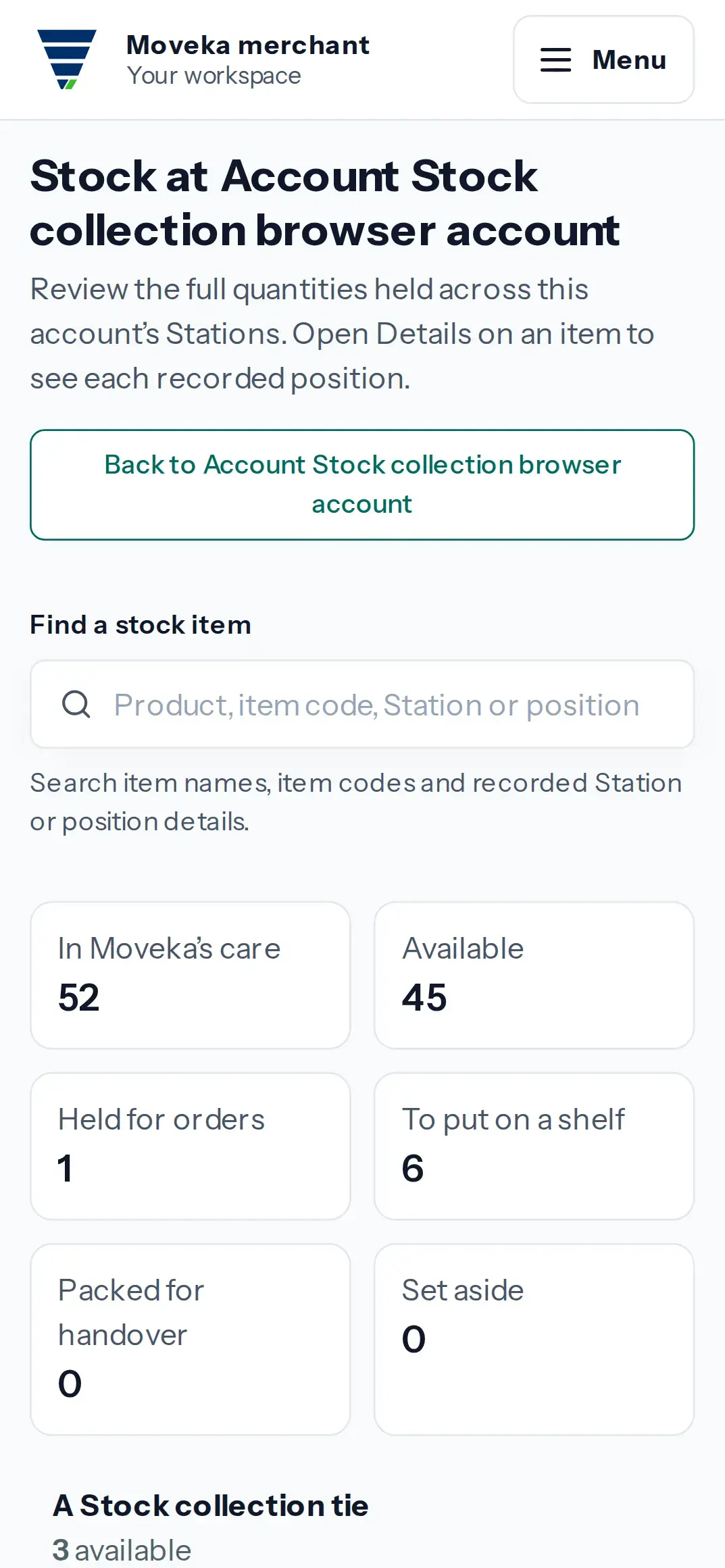
The Stock page summarizes quantities recorded for the account across its Stations. It separates available stock from items held for orders, awaiting placement, packed for handover or set aside.
Open Stock
- Sign in to the merchant workspace. Open Menu, then Accounts.
- Find the organization and tap Open. On its account page, tap Stock.
- Check the account name in the Stock heading. Use Find a stock item to search by product, item code, Station or position.
Read an item’s quantities and locations
- Read the totals at the top: In Moveka’s care, Available, Held for orders, To put on a shelf, Packed for handover and Set aside.
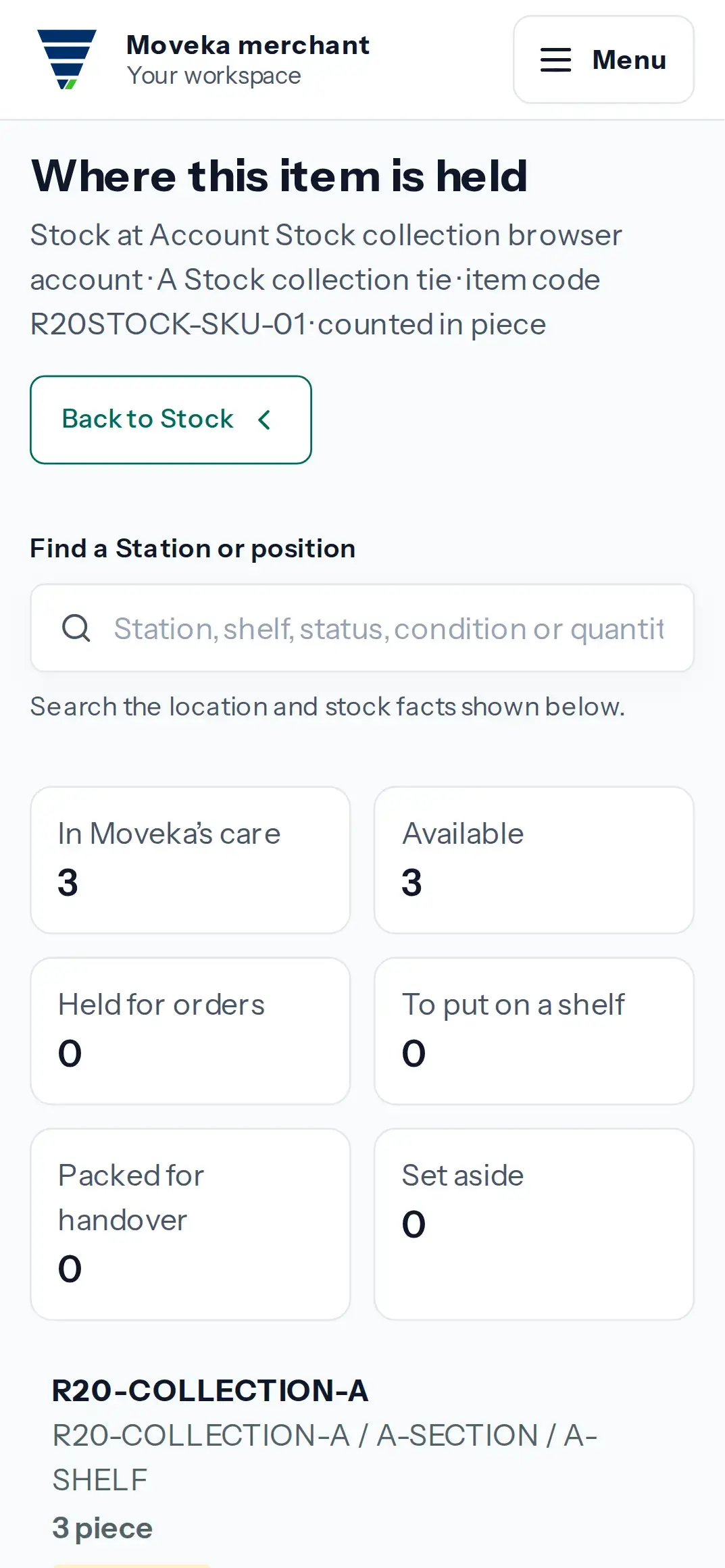
- Open Details on an item, then choose View positions. Check each Station, storage location, quantity and condition.
- Use Back to Stock to return to the account summary. These are recorded quantities, so compare the same Station, storage area and item before treating a difference as confirmed.
Open Stock counts to review recorded count results for a Station and storage area. If a figure looks wrong, compare the Station, storage area and item before relying on it. The list shows recorded results; it does not change stock.