Use this when a customer will collect goods held at a Station. You need edit access to the account, Pickup enabled, and available stock at a usable Station. Reserving pickup reduces the stock available for other reservations.
Choose the stock and recipient
- Sign in to the merchant workspace. Open Menu, then Accounts, and open the organization that owns the stock.
- Tap New pickup. Choose the product, SKU and Station position that show enough available units for this reservation.
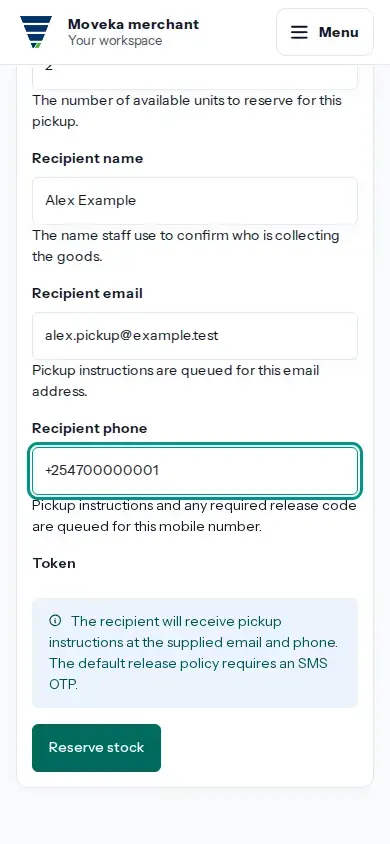
- Enter the quantity to reserve and the recipient’s name, email and phone number. Check every detail; Moveka uses the contact details to send pickup instructions.
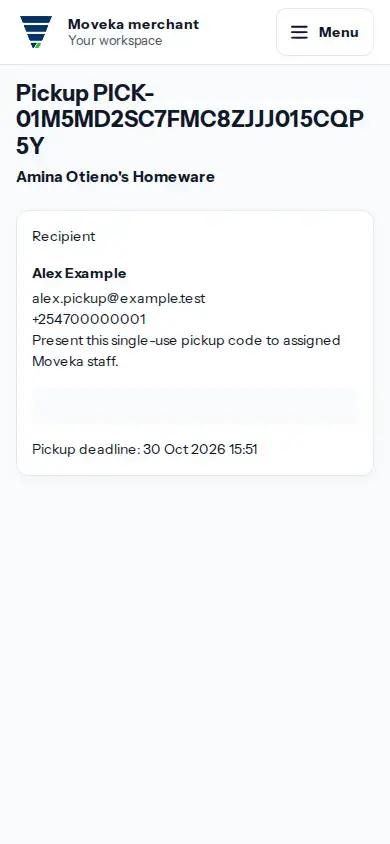
- Tap Reserve stock. The pickup details page opens with the recipient, Station stock, single-use pickup code and deadline.
Check the pickup details
- Confirm that the recipient and contact details are correct, then check the displayed pickup deadline. The page shows the code while a pickup is open, and says when it is complete, expired or cancelled.
- If the page shows a single-use pickup code, keep it private and present it only for this pickup handover. Do not include the code in a message or screenshot.
- Check the current pickup status before treating the reservation as collected. An open reservation means the goods remain reserved; it does not prove collection.
Keep the pickup details page available while you need to check this reservation; do not create another reservation just to look up the first one.