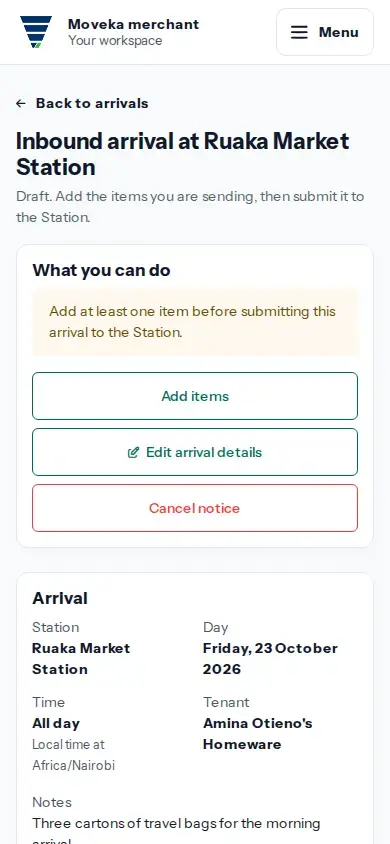
Use this for goods your organization is sending to a Station. You need edit access to the account, Receiving enabled, and a Station relationship with assigned storage and a ready fulfilment layout. An inbound plan tells the Station what to expect; it does not record that the goods have arrived.
Open inbound arrivals
- Sign in to the merchant workspace. Open Menu, then Accounts.
- Open the organization that is sending the goods, check its name, and tap Inbound.
- Tap Plan inbound arrival when it is available. The account needs Receiving enabled and an eligible Station with assigned storage and a ready fulfilment layout before an inbound plan can be created.
Set the arrival details
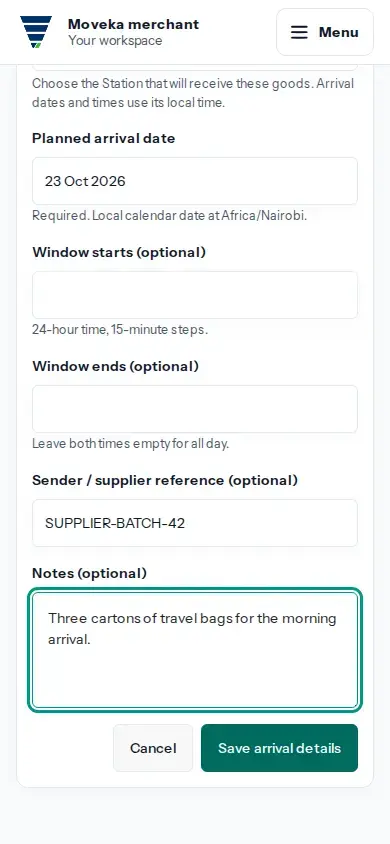
- Choose the Station that will receive these goods. The date and any times use that Station’s local time.
- Choose the planned arrival date. To provide a time window, enter both a start and an end time in 15-minute steps; leave both empty for an all-day arrival.
- Add a supplier reference or notes only when they will help identify or prepare for this arrival, then tap Save arrival details.
- On the new draft, add each active catalogue item and its expected quantity. Review the item list and arrival details before tapping Submit to Station.
After submission, the Station reviews the plan. Check its current status on the arrival page or Inbound list. A submitted plan is not a receipt; only the Station records goods as received.