Use this only if you can manage the operating account that owns the Station. The source and destination must be at that same Station. Only available stock can be moved.
Open Move stock
- Sign in to the merchant workspace. Open Menu, then Accounts. Find the organization and tap Open.
- On the account page, tap Move stock. Check the account name in the page heading.
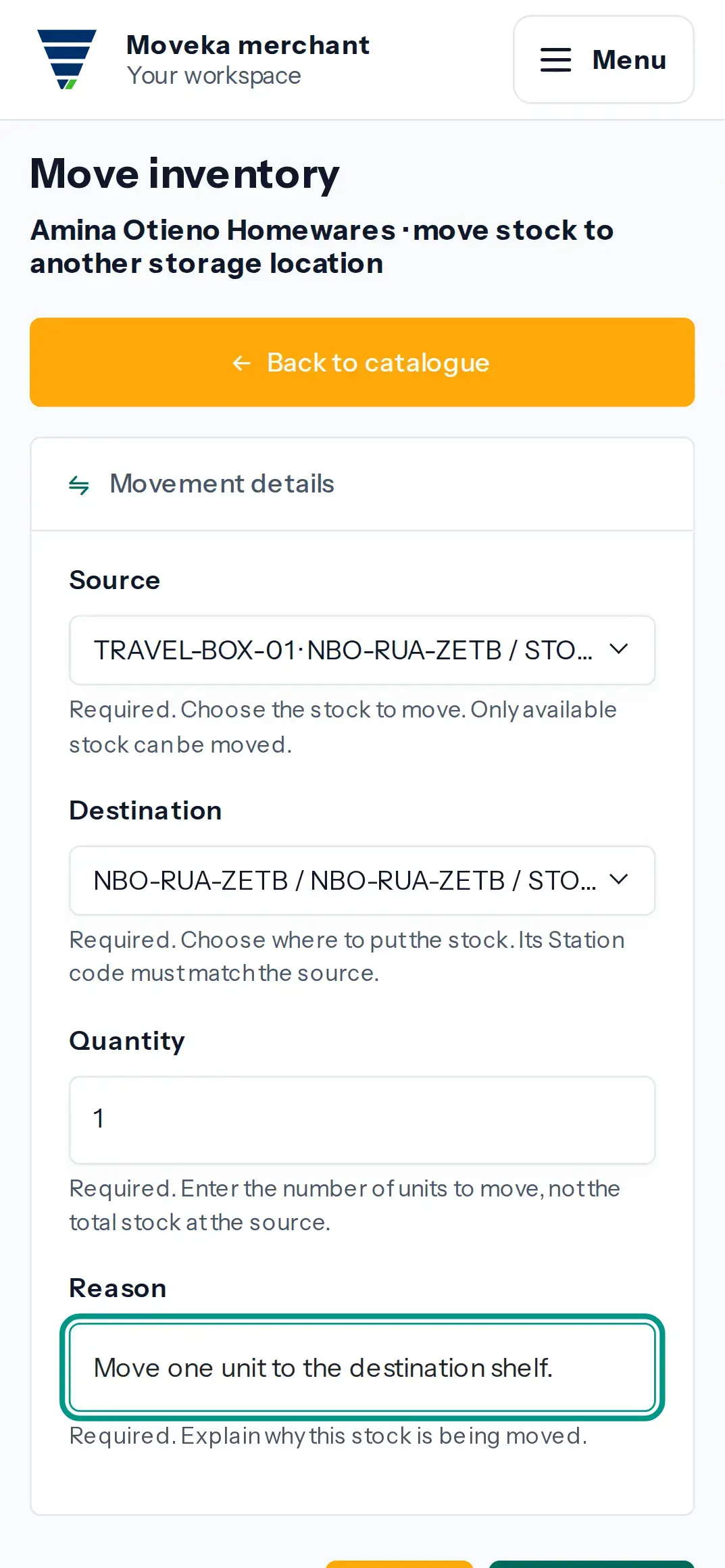
- Choose the available stock position and a destination storage area at the same Station.
Check and submit the movement
- Enter the number of units to move, not the total quantity at the source. Enter a reason that explains why the stock is moving.
- Check the source, destination, quantity and reason, then tap Move stock.
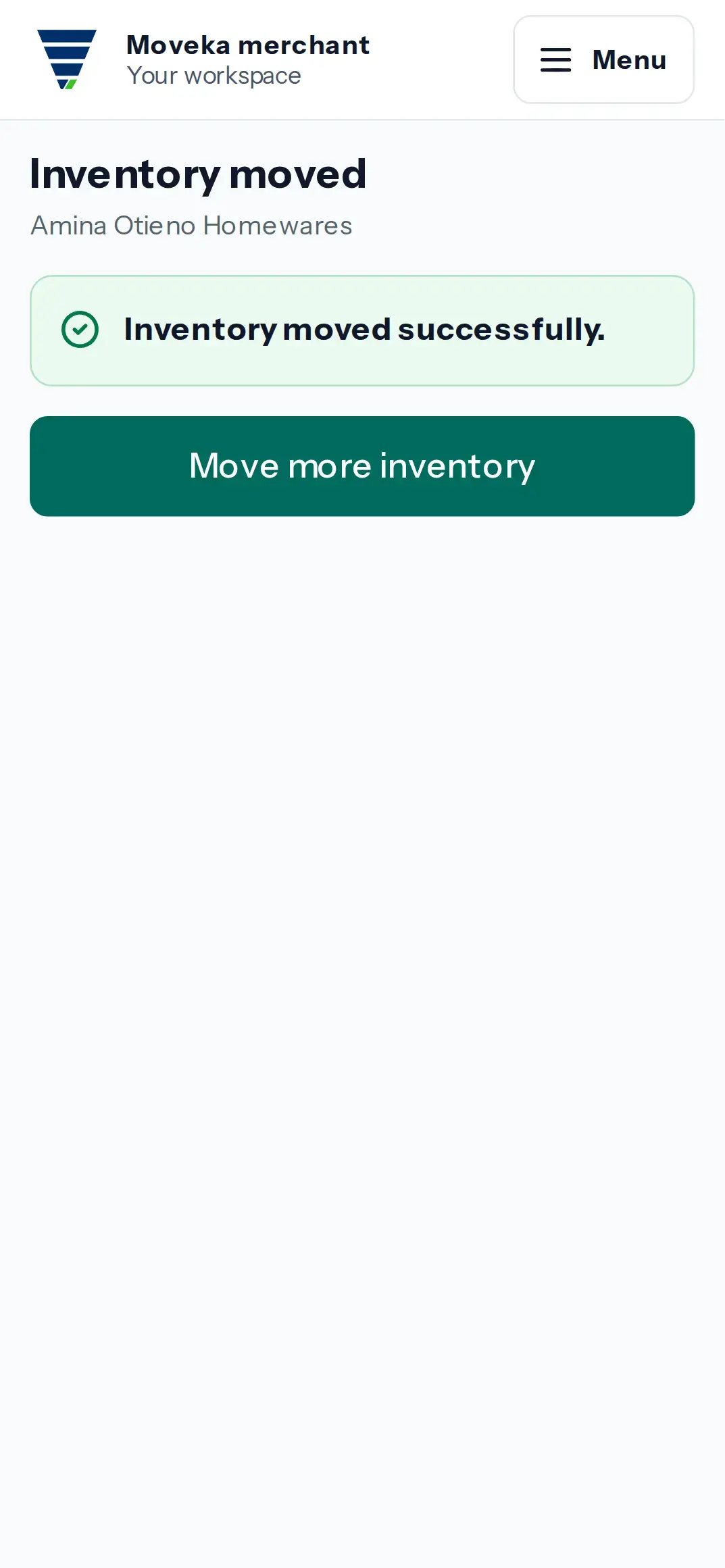
- Wait for the Inventory moved confirmation. You can then review Stock to check the recorded position.
If no stock can be selected, the page says no available stock can be moved and offers Review stock. If Moveka refuses a movement, read its message and check the available quantity, same-Station destination and reason before correcting the form.