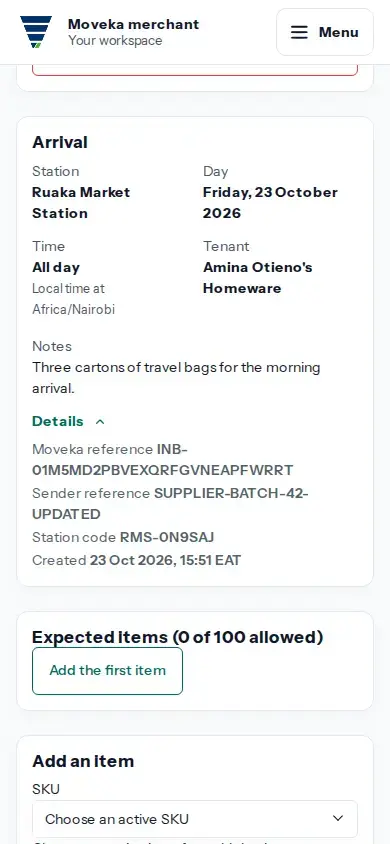
You need edit access to the account. Arrival details can be changed while the notice is still a draft. Once it has been submitted to the Station, the draft edit action is no longer available.
Open the draft
- Sign in to the merchant workspace. Open Menu, then Accounts, and open the organization sending the goods.
- Tap Inbound and open the draft you need to correct. Check the Station and arrival reference.
- Under What you can do, tap Edit arrival details. The Station is fixed for this draft.
Save the corrected details
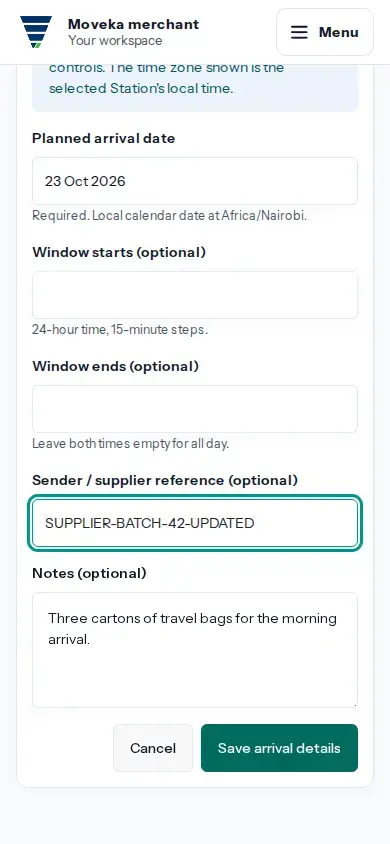
- Update the planned date in the Station’s local calendar. If you use a time window, provide both start and end times in 15-minute steps; clear both for an all-day arrival.
- Correct the supplier reference or notes if needed, then tap Save arrival details.
- Review the arrival page to confirm the new date, time and references. Add or correct expected items on that draft before submitting it to the Station.
If the Station has already received the submission, the draft edit action is unavailable. Check the current arrival status and any Station response before making a new plan.